SoundManager
A SoundManager is required in the scene to play SoundEvents
SoundManager Component

The SoundManager is the master object which is used to play sounds and manage global settings. An instance of this object is required in the scene in order to play SoundEvents. You can add the pre-made prefab called “SoundManager” found in “Assets\Plugins\Sonity\Prefabs” to the scene. Or you can add the “Sonity - Sound Manager” component to an empty GameObject in the scene, it works just as well.
💡 TIP - Play On Awake If you need to play SoundEvents on Awake() when starting your game you need to edit the Script Execution Order. Go to "Project Settings..." -> "Script Execution Order" and add "Sonity.SoundManager". Then set it to a negative value (like -50) so it loads before the code which you want to use Awake() to play sounds when starting your game.
Settings

Enable Volume Increase If enabled you get the ability to raise the volume of SoundContainers and SoundEvents by +24dB each and SoundVolumeGroups by +12dB. This is done by increasing the AudioListener.volume +60dB and reducing the volume of the AudioSource to compensate. Note that all other non-Sonity AudioSources will also be affected, you can avoid this by enabling AudioSource.ignoreListenerVolume. For volume increase to work, you need to set the Scripting Define Symbol "SONITY_ENABLE_VOLUME_INCREASE". This can be done by pressing the button below (make sure all platforms has this scripting define symbol). You also need to have a SoundManager in your scene for volume increase to work when previewing and ingame. The free trial version of Sonity doesn’t support this feature because it uses Scripting Define Symbols.
Global Volume Sets the global volume using AudioListener.volume. Note that because AudioListener.volume is used, all other non-Sonity AudioSources will also be affected. This can be remedied with using AudioSource.ignoreListenerVolume. Can be set with SetGlobalVolumeDecibel() and SetGlobalVolumeRatio() in the SoundManager.
Global Pause Pauses or unpauses all sound using AudioListener.pause. Except the SoundEvents which are set to "Ignore Global Pause". Note that because AudioListener.pause is used, all other non-Sonity AudioSources will also be paused. This can be remedied with using AudioSource.ignoreListenerPause. Can be set with SetGlobalPause() and SetGlobalUnpause() in the SoundManager."
Global SoundTag The selected Global SoundTag. SoundEvents using global SoundTag are affected by this.
Distance Scale Global range scale multiplier for all the sounds in Sonity. Distance is calculated by Unity units of distance. E.g. if Distance Scale is set to 100, a SoundEvent with the distance multiplier of 1 will be heard up to 100 Unity units away.
Third Party Integrations
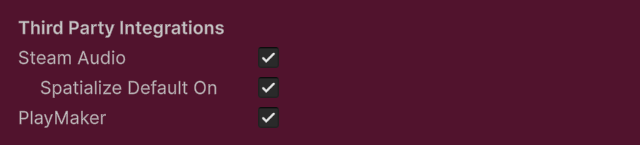
Steam Audio Integration
Enables the integration between Sonity and the third party asset Steam Audio.
Spatialize On Default Makes HRTF Plugin Spatialize in the SoundContainer Settings be enabled by default when creating new assets. Spatialize makes the sound be affected by Steam Audio with effects like occlusion, reflections and more. Disable Spatialize for 2D sounds like music etc.
PlayMaker Integration
Enables the integration between Sonity and the third party asset PlayMaker by adding custom Sonity actions.
Advanced Settings
Sound Time Scale Change the Time Scale used for sound related calculations ingame. When the game is not playing in the editor, only Time.realtimeSinceStartup can be used (for preview, etc). The Time Scale is used to calculate:
Modifier Delay
Modifier Fade In/Out Length
SoundEvent Timeline Delay
SoundEvent Cooldown Time
SoundEvent Intensity Seek Time
SoundContainer Prevent End Clicks Fade
SoundParameter Delay
SoundManager Speed of Sound Delay
SoundManager Voice Disable Time
SoundManager SoundEvent Debug Live Fade
Override Listener Distance If enabled an AudioListenerDistance component is required in the scene. The position of the AudioListenerDistance component will determine all distance based calculations (like volume falloff). While the AudioListener position will be used for spatialization and Angle to Stereo Pan calculations.
Example of usage in a 3rd person or top down game: Enable "Override Listener Distance" in the SoundManager. Put the AudioListener on the main camera and the AudioListenerDistance on the player character. Try changing the Amount slider to find a nice balance between the different positions.
Override Listener Distance: Amount % How much weight the AudioListenerDistance position has over the AudioListener position. The position is linearly interpolated between the two of them. 100% is at the AudioListenerDistance component position. 50% is halfway between them. 0% is at the AudioListener position.
Enable Speed of Sound Speed of sound is a delay based on the distance between the AudioListener and a SoundEvent.
Enable Speed of Sound: Speed of Sound Scale Global speed of sound delay scale multiplier. 1 equals 430 Unity units per second. Is calculated using the time scale selected in the SoundManager.
Addressable AudioMixer If enabled, all AudioMixer references in all SoundEvents and SoundContainers to the selected addressable AudioMixer Reference Asset. This is to fix problems when the AudioMixer is an addressable asset because it might create both a normal and an addressable instance with different IDs. Note that when using an addressable AudioMixer you should also enable Async Startup to increase startup speed. The AudioMixerGroups are matched using FindMatchingGroups using the name of the AudioMixerGroup, so you have to name your groups to something unique. For builds the AudioMixerGroups are cached and wont be updated once the sound has been played. When using AudioMixer.SetFloat() etc you need to access this specific AudioMixer instance by using "SoundManager.Instance.GetAddressableAudioMixer();" For addressable AudioMixer to work, you need to add the package "com.unity.addressables". You also need to define the Script Define Symbol "SONITY_ENABLE_ADDRESSABLE_AUDIOMIXER". Asmdef_Sonity.Internal.Runtime references Unity.Addressables and Unity.ResourceManager. Asmdef_Sonity.Internal.Editor references Unity.Addressables. The free trial version of Sonity doesn’t support this feature because it uses Scripting Define Symbols.
Addressable AudioMixer: AudioMixer Reference Assign the AudioMixer reference here, it will be automatically loaded. Only one AudioMixer per project is supported with this feature.
Addressable AudioMixer: Async Load In Editor Enables async loading of the addressable AudioMixer in the editor. Having it disabled is useful for testing in the editor when you need to access the AudioMixer or play sounds on Awake before async loading is finished.
Async Startup Makes Sonity initialize using an async loading method. This is useful for when you use the addressable AudioMixer to speed up load times. Or when using Steam Audio and you want to preload voices.
Use DontDestroyOnLoad() Calls DontDestroyOnLoad() at Start for Sonity objects. Which makes them persistent when switching scenes. For this to work the parent is set to null, which can move the objects.
Debug Warnings Makes Sonity output Debug Warnings if anything is wrong.
Debug Warnings: Debug in Play Mode Makes Sonity output Debug Warnings if anything is wrong in Play Mode.
GUI Warnings Makes Sonity show GUI Warnings if anything is wrong in the editor.
Disable Playing Sounds Disables all the Play functionality. Useful if you've for example implemented temp sounds and don't want everyone else to hear them.
Performance Settings
Voice Limit Maximum number of Voices. If the limit is reached it will steal the Voice with the lowest priority. If you need extra performance, you could try lowering the real and virtual voices to a lower number. Voice Limit cannot be lower than Voice Preload.
Max Real Voices: The maximum number of real (heard) AudioSources that can be played at the same time. "Real Voices" should be the same as the "Voice Limit", or more if you play other sounds outside of Sonity.
Max Virtual Voices: The maximum number of virtual (not heard) AudioSources that can be played at the same time. This should always be more than the number of real voices. You can change these values manually in: "Edit" > "Project Settings" > "Audio"
Apply to Project Audio Settings Applies the Voice Limit to the Project Audio Settings. Sets "Real Voices" to the "Voice Limit". You can change these values manually in: "Edit" > "Project Settings" > "Audio"
Voice Preload How many Voices to preload on Awake(). Voice Limit cannot be lower than Voice Preload.
Voice Disable Time How long in seconds to wait before disabling a Voice when they've stopped playing. Retriggering a voice which is not disabled is more performant than retriggering a voice which is disabled. But having a lot of voices enabled which aren't used is also not good for performance, so don't set this value too high. Is calculated using the time scale selected in the SoundManager.
Voice Effect Limit Maximum number of Voice Effects which can be used at the same time. A Voice with any combination of waveshaper/lowpass/highpass counts as one Voice Effect. If the values of a Voice Effect doesn't have any effect it is disabled automatically (e.g. distortion amount is 0). If the Voice Effect limit is reached, the Voice Effects are prioritized by the Voices with the highest volume * priority. Watch out for high load on the audio thread if set too high. Try setting the buffer size to "Best Performance" in "Edit" > "Project Settings" > "Audio" if you want to run more Voice Effects.
Debug

AudioListener Here you can see and select the currently cached AudioListener in runtime. If you click on the field your selection will show you the currently used AudioListener. The AudioListener component is found and cached automatically and cannot be assigned here.
AudioListenerDistance Here you can see and select the currently cached AudioListenerDistance in runtime. If you click on the field your selection will show you the currently used AudioListenerDistance. The AudioListenerDistance component is found and cached automatically and cannot be assigned here. Is only shown if “Override Listener Distance” is enabled.
Log SoundEvents

When enabled SoundEvent actions will be logged to the console. This is useful to debug what happens with SoundEvents during runtime. It also enables you to see where in the code the SoundEvent is played/stopped from if you enable Stack Tracke Logging “Script Only”.
To Console If enabled it will log SoundEvent actions to the console.
Example:

❕ Tip: As you can see in the bottom you can also see where the SoundEvent is played in code.
Debug Log Type Select which kind of Debug.Log you want to use. Switch between either Debug.Log, Debug.LogWarning or Debug.LogError.
Click On Log Selects If you click the log in the console, you will be redirected to one of either object:
Click On Log Selects: Owner Selects the owner transform which is used to play the SoundEvent.
Click On Log Selects: Position Selects the transform position which is used to play the SoundEvent if its played with PlayAtPosition with a Transform.
Click On Log Selects: SoundEvent Selects the SoundEvent which is logged.
If an Owner or Position can't be found (for example when logging stop etc) it will redirect to the SoundEvent instead.
Log Settings Opens a dropdown menu where you can select which events should be logged.
Log Settings: SoundEvent Play Logs when a SoundEvent is played.
Log Settings: SoundEvent Stop Logs when a SoundEvent is stopped with a stop command.
Log Settings: SoundEvent Pool Logs when a SoundEvent is pooled after its stopped.
Log Settings: SoundEvent Pause Logs when a SoundEvent is paused.
Log Settings: SoundEvent Unpause Logs when a SoundEvent is unpaused.
Log Settings: SoundEvent Global Pause Logs when a SoundEvent is paused using global pause.
Log Settings: SoundEvent Global Unpause Logs when a SoundEvent is unpaused using global unpause.
Log Settings: SoundParameters Once Logs any SoundParameter set to UpdateMode Once passed when playing a SoundEvent.
Log Settings: SoundParameters Continuous Logs any SoundParameter set to UpdateMode Continuous on an active SoundEvent.
Draw SoundEvents

Draws the names of all currently playing SoundEvent in the scene and/or game view. Useful for debugging when you want to see what is playing and where.
In Scene View Draws debug names in the Unity scene view. Doesn't work in Unity versions older than 2019.1.
Example:

In Game View Draws debug names in the Unity game view. Only applied in the Unity editor.
Example:

Hide if Closer Than Hides the debug if its closer to the camera than the allowed value in Game view. Useful for hiding SoundEvents which are played on the camera which you don't want to see.
Style
Font Size The font size of the text.
Volume to Opacity How much of the volume of the SoundEvent will be applied to the transparency of the text. E.g lower volumes will be more transparent.
Lifetime to Opacity How much the lifetime of the SoundEvent will affect the transparency of the text.
Lifetime Fade Length How long the fade should be. Is calculated using the time scale selected in the SoundManager.
Start Color The color the text should have when it starts playing.
End Color Which color the text should fade to over the lifetime. The color of the text outline.
Statistics

SoundEvents Statistics of SoundEvents.
SoundEvents: Created The number of instantiated SoundEvents.
SoundEvents: Active The number of active SoundEvents.
SoundEvents: Disabled The number of unused and disabled SoundEvents.
Voices Statistics of Voices.
Voices: Played The number of played Voices since start.
Voices: Stolen The number of stolen Voices since start.
Voices: Max Simultaneous The maximum number of simultaneously playing Voices since start.
Voices: Created The number of Voices in the pool.
Voices: Active The number of Voices playing audio.
Voices: Inactive The number of inactive Voices in the pool.
Voices: Paused The number of paused Voices in the pool.
Voices: Stopped The number of stopped Voices in the pool.
Voice Effects Statistics of Voice Effects. A Voice with any combination of waveshaper/lowpass/highpass counts as one Voice Effect
Voice Effects: Active The number of active Voice Effects.
Voice Effects: Available How many Voice Effects are available.
Statistics Instances

Real-time statistics per SoundEvent Instance. Available in Playmode.
Sort By
Which method to sort the list of SoundEvent Instances.
Sort By: Name Sorts by alphabetical order
Sort By: Voices Sorts by voice count
Sort By: Plays Sorts by number of plays
Sort By: Volume Sorts by volume
Sort By: Time Sorts by last time played
Show Toggle what information to show about the SoundEvent Instances.
Show: Active How many are currently active.
Show: Disabled How many are currently disabled.
Show: Voices How many voices are currently used.
Show: Plays The number of total plays.
Show: Volume The current average volume.
Editor Tools
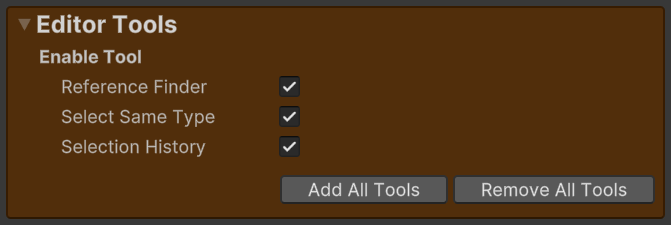
This is a collection of nifty editor tools which you can use to speed up your workflow. They are enabled with the use of “Script Define Symbols” in Project Settings -> Player -> Other Settings -> Script Compilation -> Script Define Symbols. This way they can be bound to default hotkeys and they won’t hog up your toolbars if you don’t use them.
You can read more about them here:
AudioListenerDistance Component
If “Override Listener Distance” is enabled in the SoundManager Settings this is a required component in the scene. The position of the AudioListenerDistance component will determine all distance based calculations (like volume falloff). While the AudioListener position will be used for spatialization and Angle to Stereo Pan calculations.
Example of usage in a 3rd person or top down game: Enable "Override Listener Distance" in the SoundManager. Put the AudioListener on the main camera and the AudioListenerDistance on the player character. Try changing the Amount slider to find a nice balance between the different positions.
Last updated