> For the complete documentation index, see [llms.txt](https://sonity.gitbook.io/docs/llms.txt). Markdown versions of documentation pages are available by appending `.md` to page URLs; this page is available as [Markdown](https://sonity.gitbook.io/docs/soundevent.md).
# SoundEvent
Contains SoundContainers and are played eg: soundEvent.Play(transform).
## SoundEvent
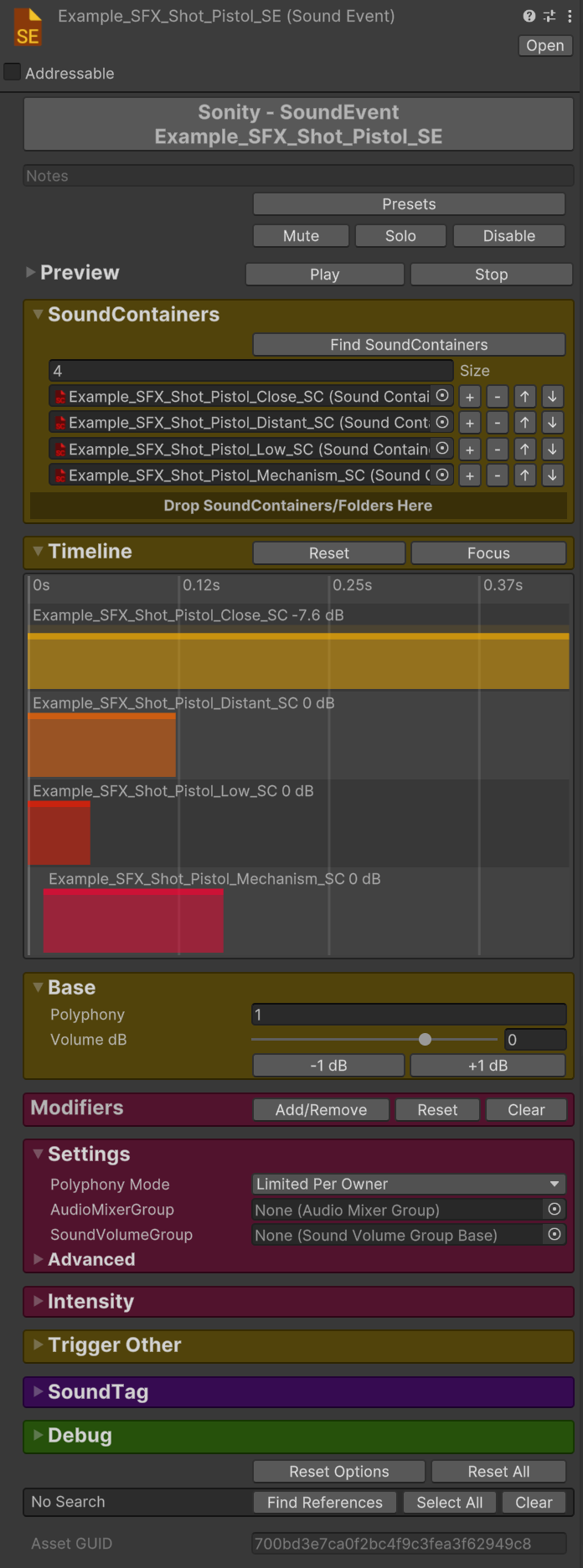
[SoundEvents](/docs/soundevent.md) are what you play in Sonity.\
They contain SoundContainers and options of how the sound should be played.\
All SoundEvents are multi-object editable.
### Notes
Example note:
At the top of the [SoundEvent](/docs/soundevent.md) there is a text field which you can fill with notes.
### Presets
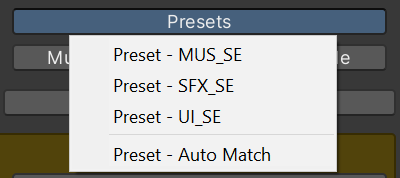
The “Presets” shown in the example picture above need to be created with the [SoundPreset](/docs/soundpreset.md) object.
**SoundPresets**\
Create [SoundPreset](/docs/soundpreset.md) objects to get custom settings which you can apply to your [SoundContainers](/docs/soundcontainer.md) and [SoundEvents](/docs/soundevent.md).\
Either manually select the preset you want to apply in the dropdown, or use “Auto Match” to automatically apply the settings based on the name of the asset.
### Mute, Solo, Disable
**Mute**\
Mutes the [SoundEvent](/docs/soundevent.md).\
Only affects the Unity Editor.
**Solo**\
Mutes all other [SoundEvents](/docs/soundevent.md) who don't have solo enabled.\
The Solo property is not serialized (e.g. will be reset on start).\
This is to prevent leaving a [SoundEvent](/docs/soundevent.md) soloed by mistake which would make nothing else sound when the game runs.\
Only affects the Unity Editor.
**Disable**\
Disables the playing of the [SoundEvent](/docs/soundevent.md).\
It is also disabled when building the project.
### Preview
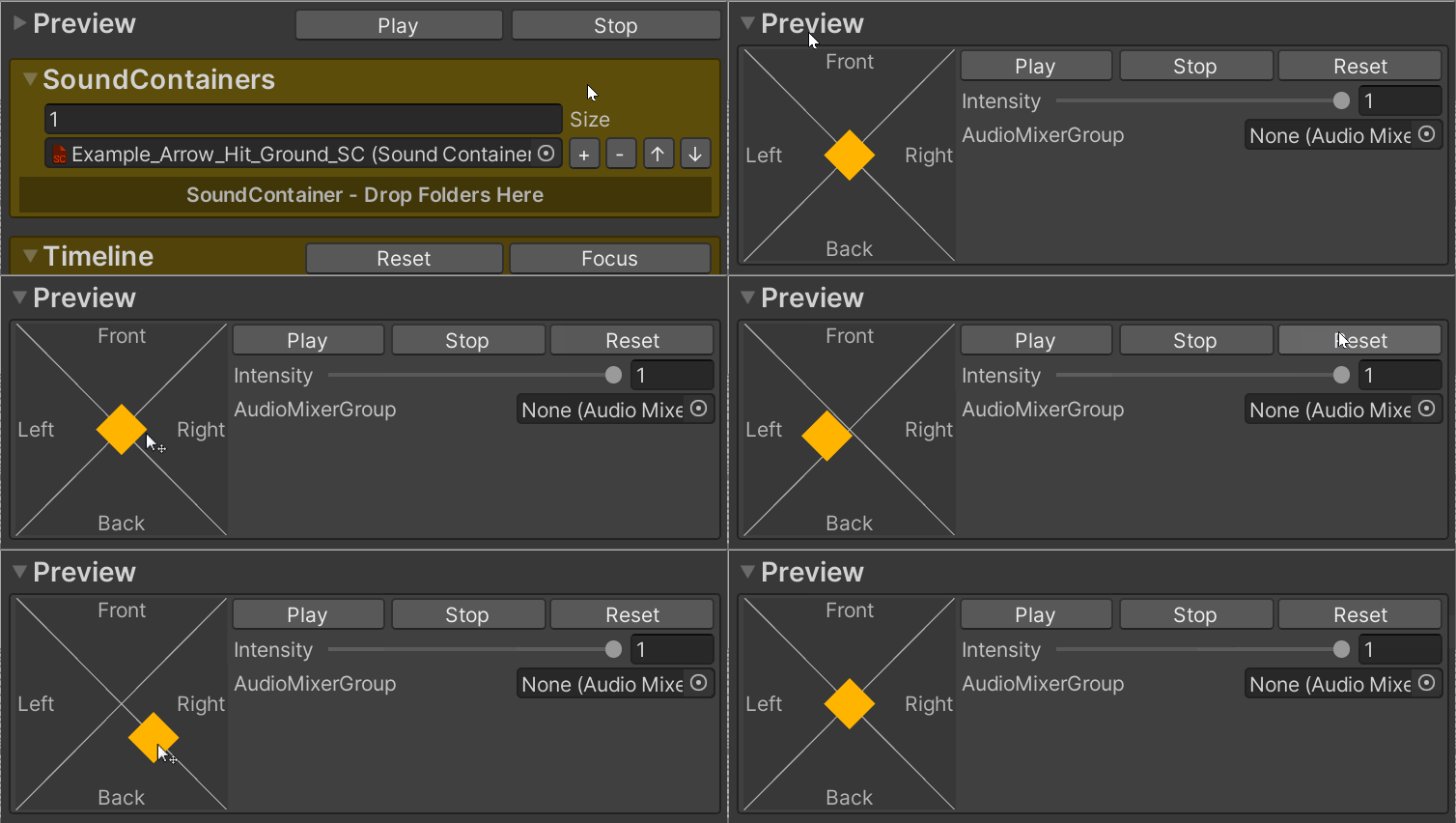
With the preview you can listen to the sounds in the editor.\
The preview handle enables you to move the sound around.
**Preview Shortcuts**\
Play: Ctrl+Q (Previews the selected [SoundEvent](/docs/soundevent.md) or [SoundContainer](/docs/soundcontainer.md)).\
Stop: Ctrl+W (Stops any playing preview of [SoundEvents ](/docs/soundevent.md)and [SoundContainers](/docs/soundcontainer.md), press two times to skip fade out).\
They are rebindable in the Shortcuts window.
**Play**\
Previews the [SoundEvent](/docs/soundevent.md).\
Does not work if Unity cannot build the project, or if the game is paused.\
Preview doesn't play more than one level of TriggerOnPlay/Stop/Tail at the moment (there is full functionality ingame).\
The default shortcut is Ctrl+Q.
**Stop**\
Press two times to skip the fade out.\
The default shortcut is Ctrl+W.
**Reset**\
Resets the preview settings.
**Intensity**\
Controls the intensity value of the played [SoundContainers](/docs/soundcontainer.md).
**AudioMixerGroup**\
Only used for preview.
### Spatialization Info
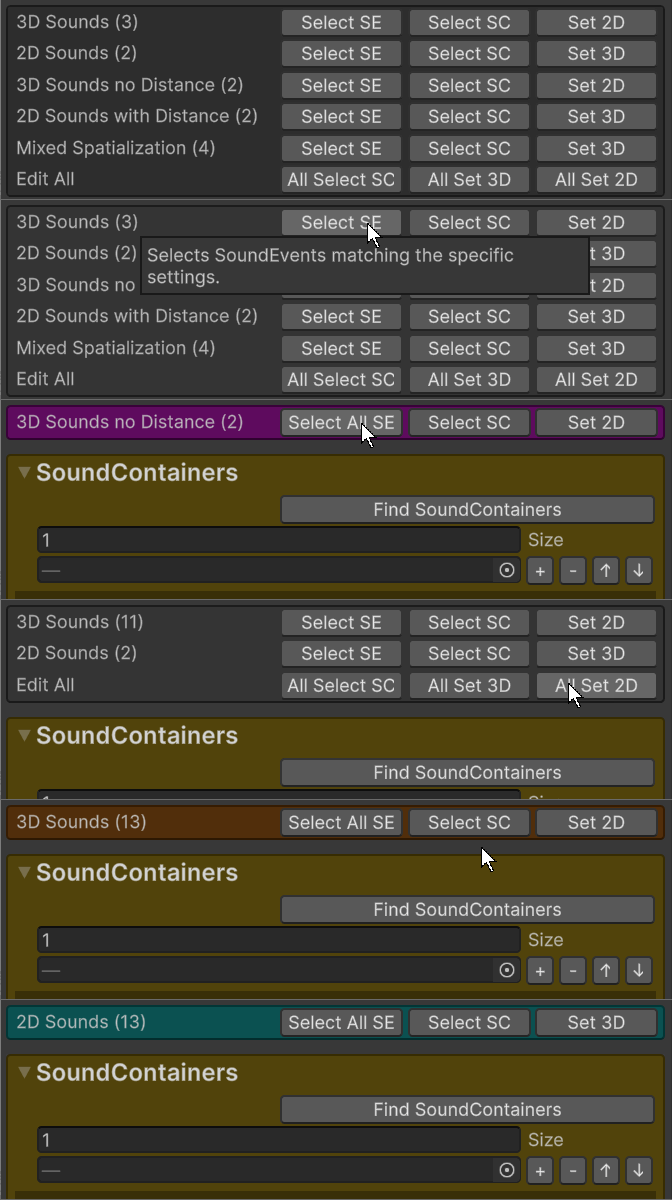
Show and edit spatialization info for the selected [SoundEvents](/docs/soundevent.md).
**3D Sounds**\
All [SoundEvents](/docs/soundevent.md) with [SoundContainers](/docs/soundcontainer.md) which have Spatial Blend > 0 and Distance Enabled.
**2D Sounds**\
All [SoundEvents](/docs/soundevent.md) with [SoundContainers](/docs/soundcontainer.md) which have Spatial Blend = 0 and Distance Disabled.
**3D Sound no Distance**\
All [SoundEvents](/docs/soundevent.md) with [SoundContainers](/docs/soundcontainer.md) which have Spatial Blend > 0 and Distance Disabled.
**2D Sound with Distance**\
All [SoundEvents](/docs/soundevent.md) with [SoundContainers](/docs/soundcontainer.md) which have Spatial Blend = 0 and Distance Enabled.
**2D Sound with Distance**\
All [SoundEvents](/docs/soundevent.md) with [SoundContainers](/docs/soundcontainer.md) which have mixed Spatial Blend and Distance Enabled settings.
**Sound with Force 2D**\
All [SoundEvents](/docs/soundevent.md) which have Force 2D enabled.
**Empty**\
All [SoundEvents](/docs/soundevent.md) which have no [SoundContainers](/docs/soundcontainer.md).
**Select SE**\
Selects [SoundEvents](/docs/soundevent.md) matching the specific settings.
**Select All SE**\
Selects All [SoundEvents](/docs/soundevent.md) in the same folder disregarding subfolders.
**Select SC**\
Selects [SoundContainers](/docs/soundcontainer.md) of the [SoundEvents](/docs/soundevent.md) matching the specific settings.
**Set 3D**\
Sets the [SoundContainers](/docs/soundcontainer.md) of the selected [SoundEvents](/docs/soundevent.md) to Spatial Blend 1 and Distance Enabled.
**Set 2D**\
Sets the [SoundContainers](/docs/soundcontainer.md) of the selected [SoundEvents](/docs/soundevent.md) to Spatial Blend 0 and Distance Disabled.
**No Force 2D**\
Removes "Force 2D" from the selected [SoundEvents](/docs/soundevent.md) modifiers.
**All Select AC**\
Selects all [SoundContainers](/docs/soundcontainer.md) of the selected [SoundEvents](/docs/soundevent.md).
**All Set 3D**\
Sets all [SoundContainers](/docs/soundcontainer.md) of the selected [SoundEvents](/docs/soundevent.md) to Spatial Blend 1 and Distance Enabled.
**All Set 2D**\
Sets all [SoundContainers](/docs/soundcontainer.md) of the selected [SoundEvents](/docs/soundevent.md) to Spatial Blend 0 and Distance Disabled.
### SoundContainers
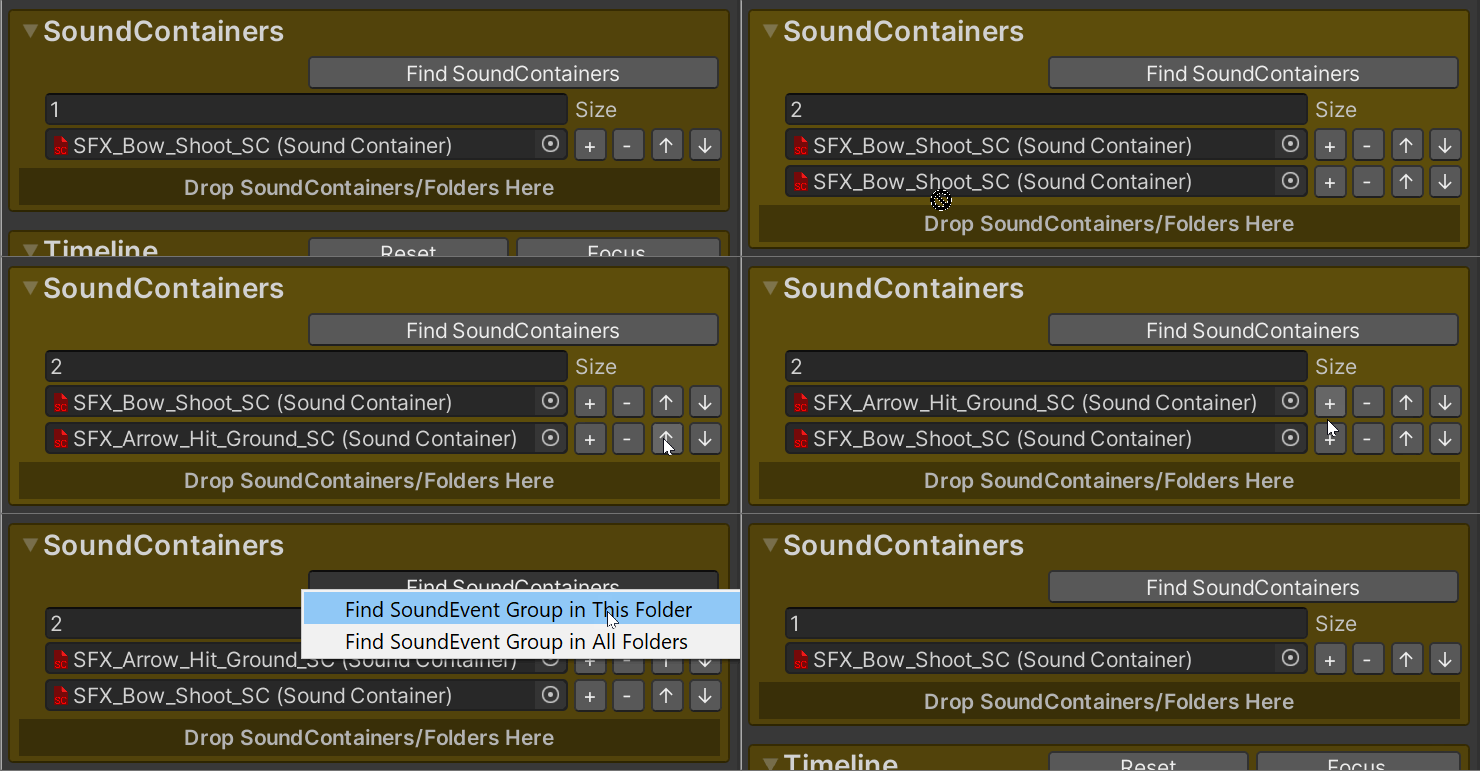
This is where you assign the [SoundContainers](/docs/soundcontainer.md) which are going to be used when the [SoundEvent ](/docs/soundevent.md)is played.
**Find SoundContainers**
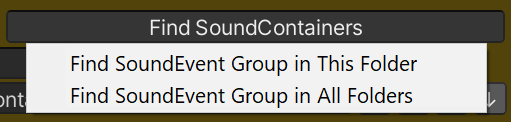
Automatically finds all [SoundContainers](/docs/soundcontainer.md) containing the same name as this [SoundEvent ](/docs/soundevent.md)(disregarding \_SE, numbers).\
Can be used on multiple items at once (tip: search "t:soundEvent").\
If no matching [SoundContainers](/docs/soundcontainer.md) are found, it will try and remove one character at the end of the name at a time until it finds a hit.";
**Drop SoundContainers/Folders Here**\
Here you can drag and drop [SoundContainers](/docs/soundcontainer.md) or folders with [SoundContainers](/docs/soundcontainer.md) in them.
### Timeline
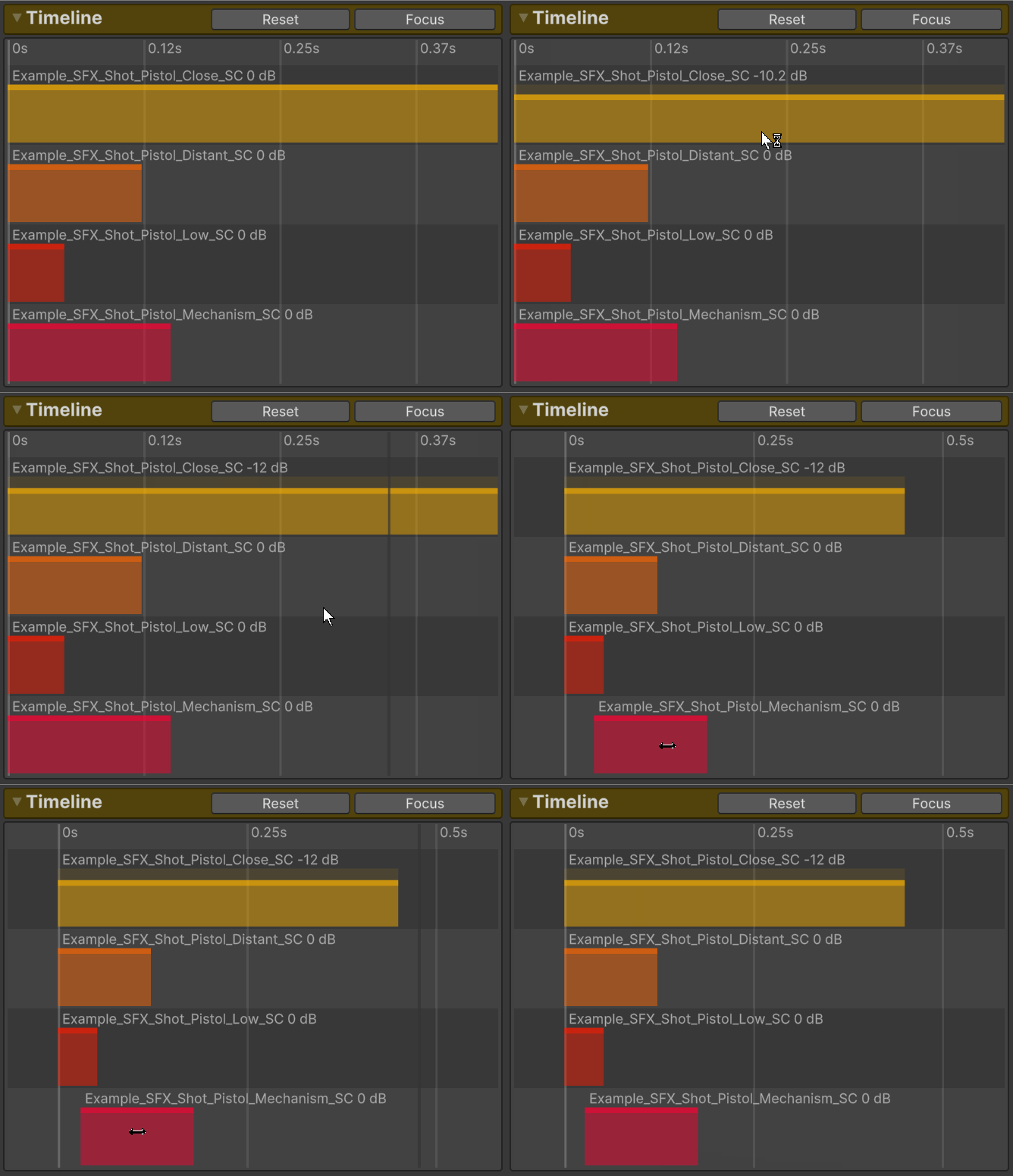
In the timeline editor you can move the items in time and change the volume volume of individual [SoundContainers](/docs/soundcontainer.md).\
The length of the item in the timeline is determined by the length of the longest AudioClip in the [SoundContainer](/docs/soundcontainer.md).\
If you change the pitch, the length of the item will match the pitch.
**Shortcuts and Controls**\
Zoom: Ctrl + mouse wheel scroll.\
Pan: Mouse wheel hold and drag (or left mouse button hold and drag on the background).\
Volume: Hold and drag top of item up/down or click on the volume to write the decibel value.\
Move item: Hold and drag on item left/right.\
Focus on items: F
### Base
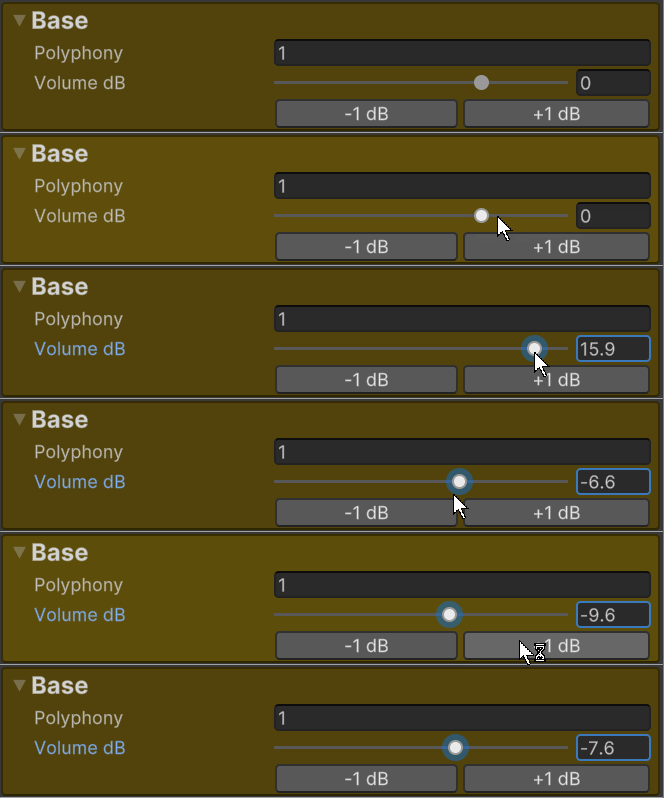
Contains base settings for the [SoundEvent](/docs/soundevent.md).
**Polyphony**\
How many instances of the [SoundEvent](/docs/soundevent.md) that can exist at the same transform.\
Modifier polyphony overrides this value.
**Volume dB**\
Volume offset in decibel.\
If you want to be able to raise the volume and not just lower it you have 2 options:
**Option A:**\
Enable "Enable Volume Increase" in the [SoundManager](/docs/soundmanager.md).\
This will enable you to raise the volumes of [SoundContainers](/docs/soundcontainer.md) and [SoundEvents](/docs/soundevent.md) by +24 dB each and [SoundVolumeGroups](/docs/soundvolumegroup.md) by +12dB.
**Option B:**\
Select all the [SoundEvents](/docs/soundevent.md) and lower the volume by -20 dB with the -1dB button.\
Then to compensate you can increase the global volume with an Audio Mixer (which you then can set to +20 dB).
{% hint style="info" %}
**💡 TIP - Convert from Old Modifier to Base**\
You can convert the old [Modifier](/docs/modifiers.md) polyphony and volume to the new Base by selecting the assets and running:\
"Tools/Sonity 🔊/Convert SoundEvent Modifier Volume and Polyphony to Base"\
This will offset the Base volume with the [Modifier](/docs/modifiers.md) volume and override the Base polphony with the [Modifier](/docs/modifiers.md) polyphony.
{% endhint %}
**-1 dB**\
Lowers the relative volume of all the selected [SoundEvents](/docs/soundevent.md).\
Useful for example if you want to raise the volume of one [SoundEvent](/docs/soundevent.md) and keep the relative volume.\
Because then you can lower all of them to get more headroom.\
If multiple [SoundEvents](/docs/soundevent.md) are selected it will show the lowest volume.
**+1 dB**\
Raises the relative volume of all the selected [SoundEvents](/docs/soundevent.md).\
Useful for example if you want to set the loudest volume to 0 dB but keep the relative volumes.\
If multiple [SoundEvents](/docs/soundevent.md) are selected it will show the highest volume.
### Modifiers
Modifiers are used to control how [SoundEvents](/docs/soundevent.md) are played (e.g. volume, polyphony, fade in length etc).
See [Modifiers](/docs/modifiers.md) for more info.
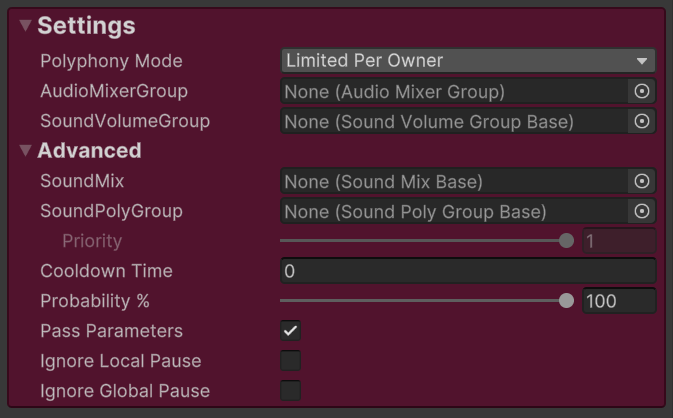
### Settings
**Polyphony Mode**
Polyphony Mode: **Limited Per Owner**\
Useful if you want to limit polyphony e.g per player.\
You can use e.g [SoundEvent.PlayAtPosition();](/docs/soundevent/soundevent-functions.md) to play a [SoundEvent](/docs/soundevent.md) at one position with another owner.
Polyphony Mode: **Limited Globally**\
Useful if you want to limit the polyphony globally e.g for bullet impacts.\
This setting will change the old owner to the new position and set the new owner as the Transform of the [SoundManager](/docs/soundmanager.md).Instance.\
If you play the [SoundEvent](/docs/soundevent.md) with either [MusicPlay](/docs/soundevent/soundevent-functions.md) or [UIPlay](/docs/soundevent/soundevent-functions.md) this setting will not have an effect.
{% hint style="info" %}
❕ Tip: If you want to limit the polyphony per owner and globally at the same time, you can use [SoundPolyGroups](#h.kivxl47osql).
{% endhint %}
**AudioMixerGroup**\
The AudioMixerGroup you want to output to.
{% hint style="info" %}
💡 TIP - AudioMixerGroup Performance\
If you have issues with audio performance you might want to make sure you’re not using an unnecessary amount of AudioMixerGroups (like a hundred of them).\
Because changing AudioMixerGroup for a Voice uses performance (when playing a new Voice Sonity tries to find an unused Voice which uses the same AudioMixerGroup).\
Use AudioMixerGroups when you want effects per group or e.g. ducking or for larger groups of sounds, but maybe not a have a unique one for each sound.
{% endhint %}
**SoundVolumeGroup**
[SoundVolumeGroup](/docs/soundvolumegroup.md) enables grouped volume control with live volume changes.\
It is perfect for quickly changing the volume of a large group of sounds.\
It also supports +12dB volume if you “Enable Volume Increase” in the [SoundManager](/docs/soundmanager.md).
### Advanced Settings
**SoundMix**\
[SoundMix](/docs/soundmix.md) enables hierarchical control of for example volume or distance scale etc.
**SoundPolyGroup**\
[SoundPolyGroup](/docs/soundpolygroup.md) gives polyphony control grouped over different [SoundEvent](/docs/soundevent.md) types.
**Priority**\
Lower priority [SoundEvents](/docs/soundevent.md) will be stolen first.\
If "Skip Lower Priority" is enabled on the [SoundPolyGroup](/docs/soundpolygroup.md) this will determine if this [SoundEvent](/docs/soundevent.md) will play or not when the Polyphony Limit is reached.
**Cooldown Time**\
How quick this [SoundEvent](/docs/soundevent.md) can be retriggered in seconds.\
Is calculated using the time scale selected in the [SoundManager](/docs/soundmanager.md).
**Probability %**\
The probability that this [SoundEvent](/docs/soundevent.md) should play.
**Pass Parameters**\
If [SoundParameters](/docs/soundparameter.md) should be passed to sub.\
E.g [SoundTag](/docs/soundtag.md), TriggerOnPlay, TriggerOnStop, TriggerOnTail.
**Ignore Local Pause**\
If enabled, the [SoundEvent](/docs/soundevent.md) won't be paused unless force pause is used.
**Ignore Global Pause**\
If enabled, the [SoundEvent](/docs/soundevent.md) won't be paused when global pause is used.
### Intensity
Intensity contains settings for how [SoundParameterIntensity](/docs/soundparameter/soundparameterintensity.md) is scaled before it is applied to the enabled intensity options e.g Volume, Pitch etc.
In the example above the sound is played a few times with a [SoundParameterIntensity](/docs/soundparameter/soundparameterintensity.md).\
The range of the recorded intensity is from 0.5 to 2.5.\
When “Scale Min-Max to 0-1” is pressed the following happens:
1. It first finds the Min value which is 0.5 and sets Add to -0.5 so it is 0
2. Then it finds the Max value which now is 2 and sets Multiplier to 0.5 so it is 1\
This makes the range into 0 to 1.
The intensity debug log records all intensity values used when this [SoundEvent](/docs/soundevent.md) is played.\
It is used to scale the [SoundParameterIntensity](/docs/soundparameter/soundparameterintensity.md) to a 0-1 range.
**Add**\
Adds to the [SoundParameterIntensity](/docs/soundparameter/soundparameterintensity.md).
**Multiplier**\
Multiplier of the [SoundParameterIntensity](/docs/soundparameter/soundparameterintensity.md).
**Curve**\
Curve of the intensity.\
From 0 (soft) to 1 (hard).
**Smoothing**\
The seek time of the [SoundParameterIntensity](/docs/soundparameter/soundparameterintensity.md) in seconds.\
Is calculated using the time scale selected in the [SoundManager](/docs/soundmanager.md).
**Enable Threshold**\
If this [SoundEvent](/docs/soundevent.md) is played with a [SoundParameterIntensity](/docs/soundparameter/soundparameterintensity.md) and it is under the threshold it won't be played.
Enable Threshold: **Threshold**\
The threshold limit after scaling the intensity value.
**Scale Add**\
Adds to the [SoundParameterIntensity](/docs/soundparameter/soundparameterintensity.md), used by the automatic scaling.\
Is separate from the manual add setting to provide finer control and better multi-editing.
**Scale Multiplier**\
Multiplier of the [SoundParameterIntensity](/docs/soundparameter/soundparameterintensity.md), used by the automatic scaling.\
Is separate from the manual multiplier setting to provide finer control and better multi-editing.
**Intensity Record**\
If enabled it will record all [SoundParameterIntensity](/docs/soundparameter/soundparameterintensity.md)used when playing this SoundEvent.
**Debug Zoom**\
Focuses the vertical zoom scale to the values which are within the min and max range.
**Debug Resolution**\
The resolution of the displayed values.
**Scale Max to 1**\
Sets Intensity Add to 0.\
Then uses the recorded values to scale the Max value to 1 with Intensity Multiply.\
Useful for e.g. impacts where the Min value is 0 and the Max value is unknown.
**Scale Min-Max to 0-1**\
Uses the recorded values to make the Min value 0 with Intensity Add.\
Then uses the recorded values to scale the Max value to 1 with Intensity Multiply.\
Useful where Min and Max Intensity value ranges are unknown.
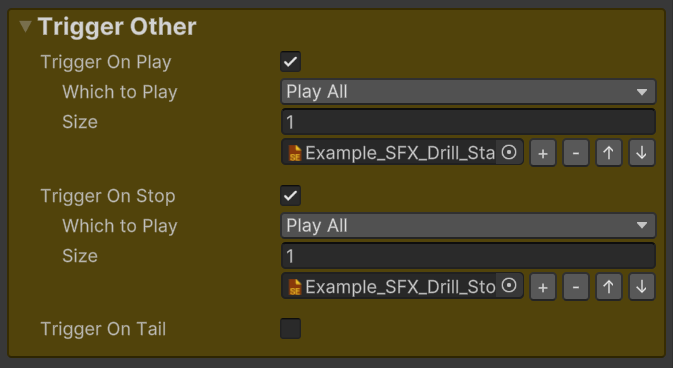
### Trigger Other
Triggers other [SoundEvents](/docs/soundevent.md).
**Which to Play**\
If Play All is selected, then all assigned [SoundEvents](/docs/soundevent.md) will be played.\
If One Random is selected, then one random of the assigned [SoundEvents](/docs/soundevent.md) will be played.\
The randomizer uses a pseudo random function remembering which [SoundEvents](/docs/soundevent.md) it last played to avoid repetition.
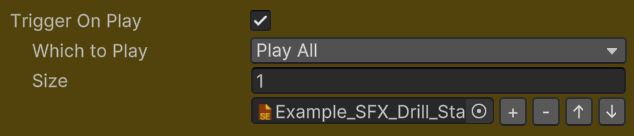
#### Trigger On Play
Triggers another [SoundEvent](/docs/soundevent.md) when this [SoundEvent](/docs/soundevent.md) is played.
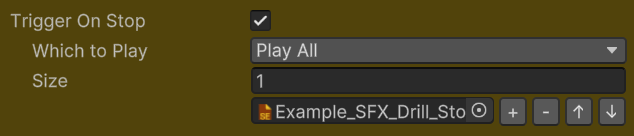
#### Trigger On Stop
Triggers another [SoundEvent](/docs/soundevent.md) when this [SoundEvent](/docs/soundevent.md) is stopped.
#### Trigger On Tail
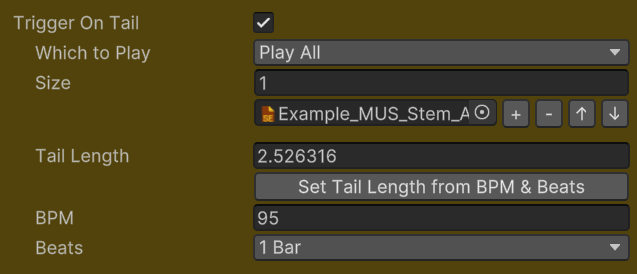
Triggers another [SoundEvent](/docs/soundevent.md) "Tail Length" before the end.\
It looks at the time of the last played voice on the first [SoundContainer](/docs/soundcontainer.md).
Useful for music, e.g. if you have an intro with a 2 second tail and a loop you want to play on the tail of the intro.\
If you play with [SoundManager](/docs/soundmanager.md).PlayMusic, you can stop the next [SoundEvent](/docs/soundevent.md) with [SoundManager](/docs/soundmanager.md).StopAllMusic without a reference.
If you want it to trigger itself, make sure to set the "Settings" polyphony to 2.\
If the trigger timing is not tight enough, try setting the AudioClip "Compression Format" to PCM or ADPCM (Vorbis is less accurate).
**Tail Length**\
How long in seconds before the end of the [SoundEvent](/docs/soundevent.md) to trigger the next [SoundEvent](/docs/soundevent.md).\
It looks at the time of the last played voice on the first [SoundContainer](/docs/soundcontainer.md).
It takes into account pitch when calculating time.\
For example, if the tail length is 2 seconds and you pitch it +12 semitones (2x speed) the internal tail length will be 1 seconds.\
This is because double the speed with half the duration and vice versa.
**Set Tail Length from BPM & Beats**\
Calculates the Tail Length from the BPM and the Beats settings.
**BPM**\
Beats per minute.
**Beats**\
How long the tail is in beats.
### SoundTag
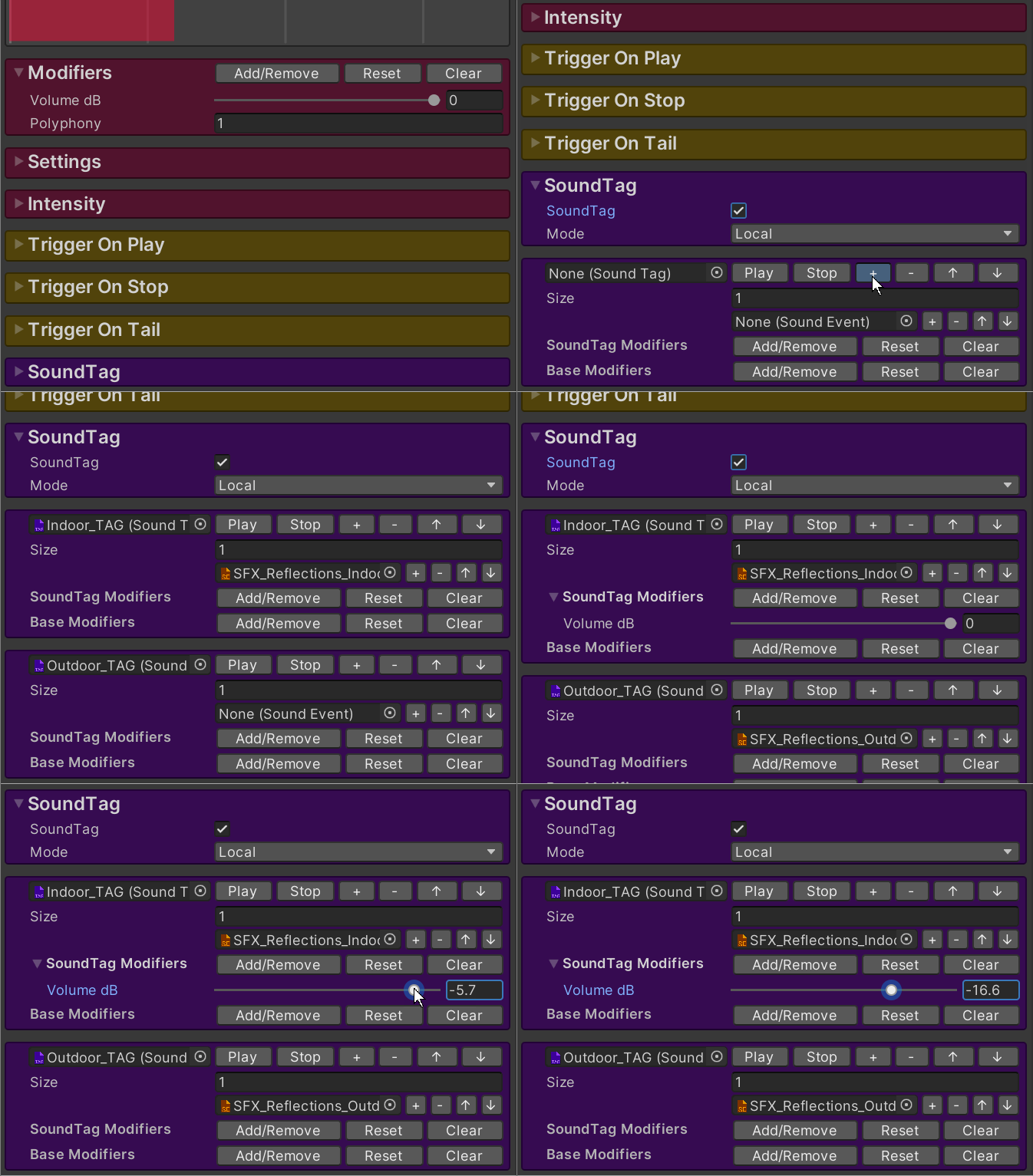
Uses [SoundTag](/docs/soundtag.md) to play other [SoundEvents](/docs/soundevent.md) and/or change [SoundEventModifier](/docs/modifiers.md).\
The [SoundTag](/docs/soundtag.md) won't be passed to the [SoundEvents](/docs/soundevent.md) of the [SoundTag](/docs/soundtag.md) in order to avoid infinite repetitions.
**Mode**\
If local [SoundTag](/docs/soundtag.md) is selected you need to pass an [SoundTag](/docs/soundtag.md) when playing the [SoundEvent](/docs/soundevent.md).\
If global [SoundTag](/docs/soundtag.md) is selected you need to set the [SoundTag](/docs/soundtag.md) on the [SoundManager](/docs/soundmanager.md).
**SoundTag**\
If this [SoundTag](/docs/soundtag.md) is selected the SoundEvents below will be played.
**Modifiers**\
If enabled the selected [modifiers](/docs/modifiers.md) will be applied to the base [SoundEvent](/docs/soundevent.md) and the [SoundEvents](/docs/soundevent.md) of the [SoundTag](/docs/soundtag.md).\
[Modifiers](/docs/modifiers.md) are used to control how [SoundEvents](/docs/soundevent.md) are played (e.g. volume, polyphony, fade in length etc).\
See [Modifiers](/docs/modifiers.md) for more info.
### Debug
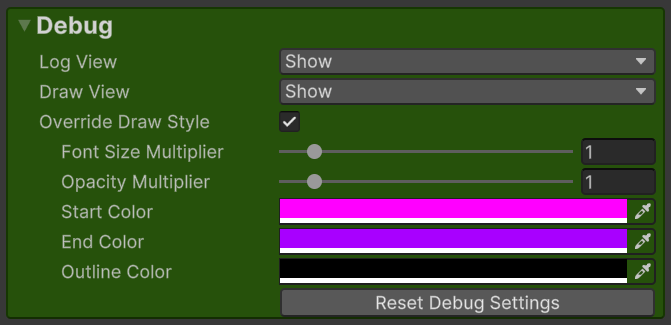
Contains settings on how the [SoundEvent](/docs/soundevent.md) should be debugged.
**Log View**\
If the [SoundEvent](/docs/soundevent.md) should be viewed or hidden from the [SoundManager Debug Log SoundEvents](/docs/soundmanager.md#log-soundevents).\
Force show will make it always debug even if [SoundManager Debug Log SoundEvents](/docs/soundmanager.md#log-soundevents) is disabled.
**Draw View**\
If the [SoundEvent](/docs/soundevent.md) should be viewed or hidden from the [SoundManager Debug Draw SoundEvents](/docs/soundmanager.md#draw-soundevents).
**Override Draw Style**\
Overrides the debug draw style set in the [SoundManager](/docs/soundmanager.md).
Override Draw Style: **Font Size Multiplier**\
Multiplier of the font size.
Override Draw Style: **Opacity Multiplier**\
Multiplier of the opacity of the Debug Draw text.
Override Draw Style: **Start Color**\
The color the text should have when it starts playing.
Override Draw Style: **End Color**\
Which color the text should fade to over the lifetime.
Override Draw Style: **Outline Color**\
The color of the text outline.
### Sonity GUID
Sonity uses cached GUIDs for object comparison.\
This solves problems where object equality isn't always the same when using e.g. addressables.\
The Sonity AssetPostprocessor automatically saves the GUIDs for objects.\
If you have any missing GUIDs (when upgrading) you can run:\
"Tools/Sonity 🔊/Tools/Reserialize - All Sonity Assets".\
Sonity GUID by [Tobias Johansson](https://www.knackelibang.com/)