> For the complete documentation index, see [llms.txt](https://sonity.gitbook.io/docs/llms.txt). Markdown versions of documentation pages are available by appending `.md` to page URLs; this page is available as [Markdown](https://sonity.gitbook.io/docs/soundcontainer.md).
# SoundContainer
Contains AudioClips and are used in SoundEvents
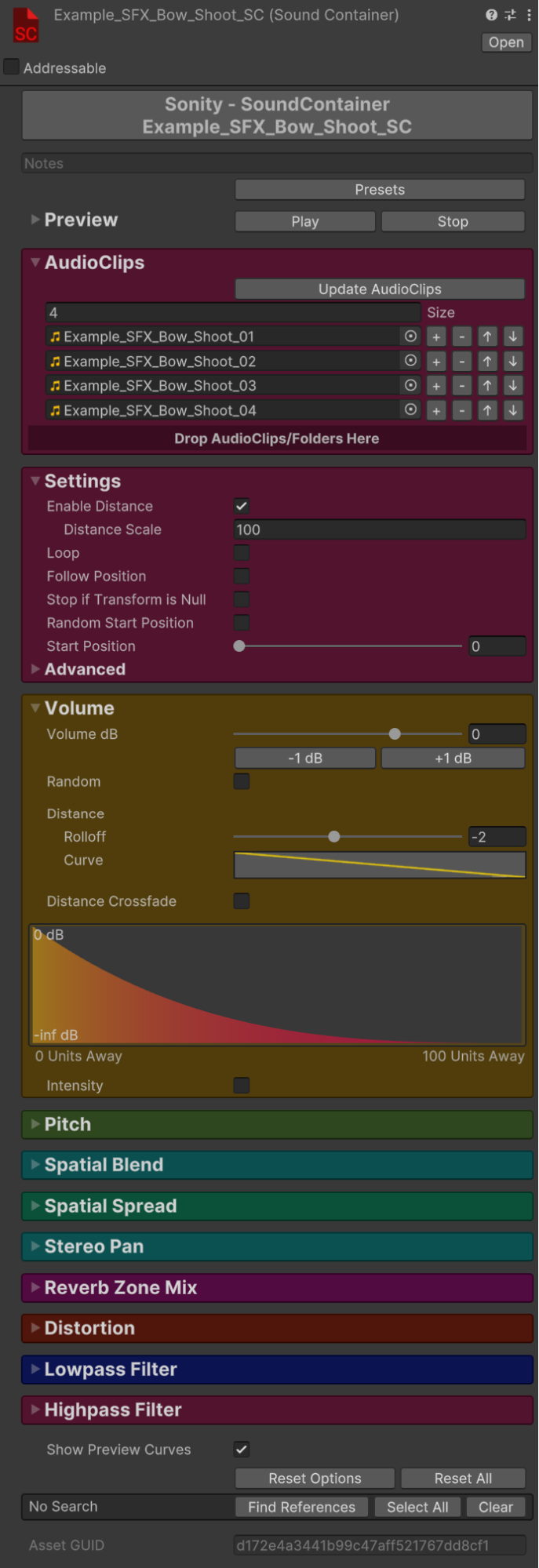
[SoundContainers](/docs/soundcontainer.md) are the building blocks of Sonity.\
They contain AudioClips and options of how the sound should be played.\
All [SoundContainers](/docs/soundcontainer.md) are multi-object editable.\
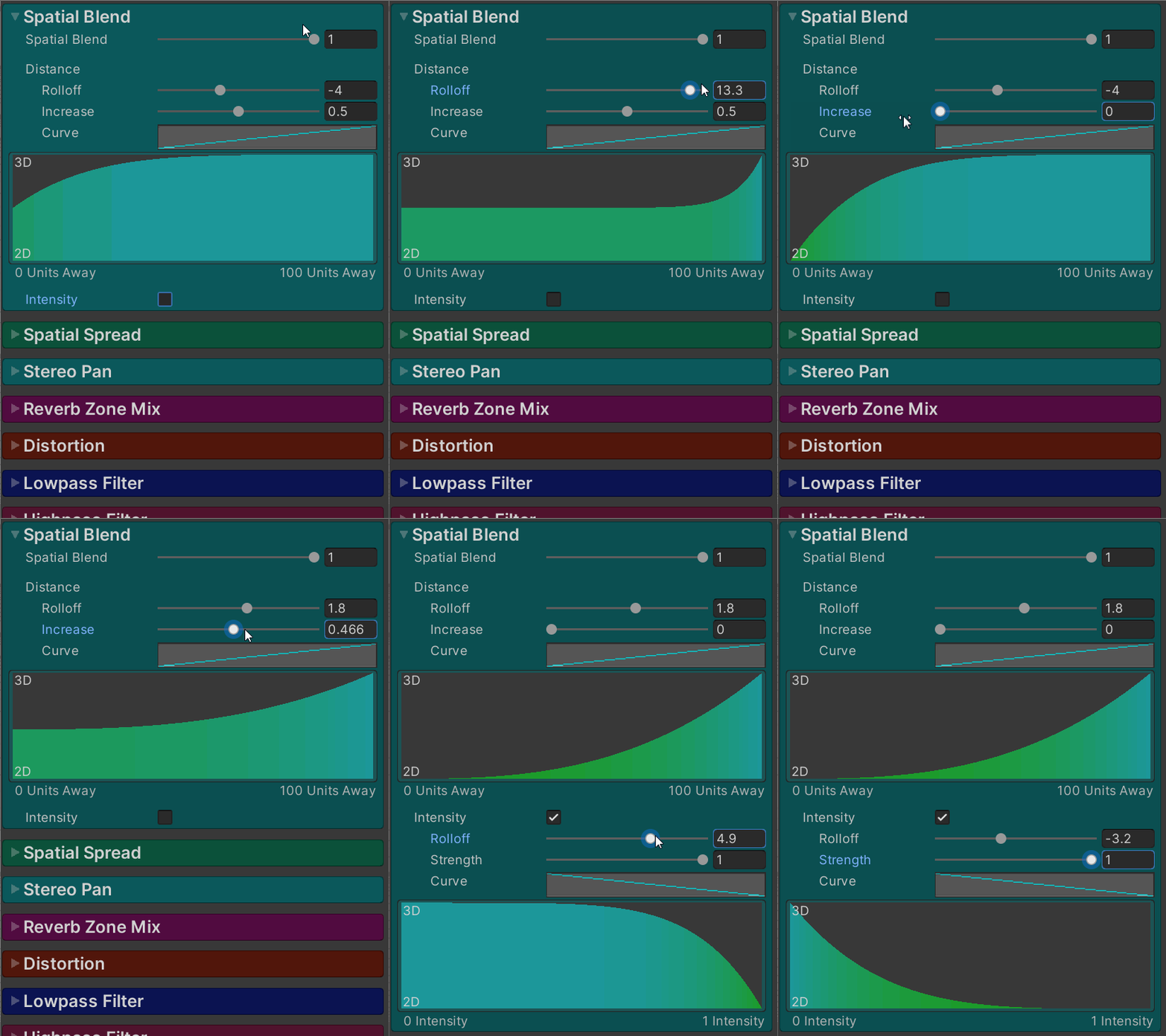
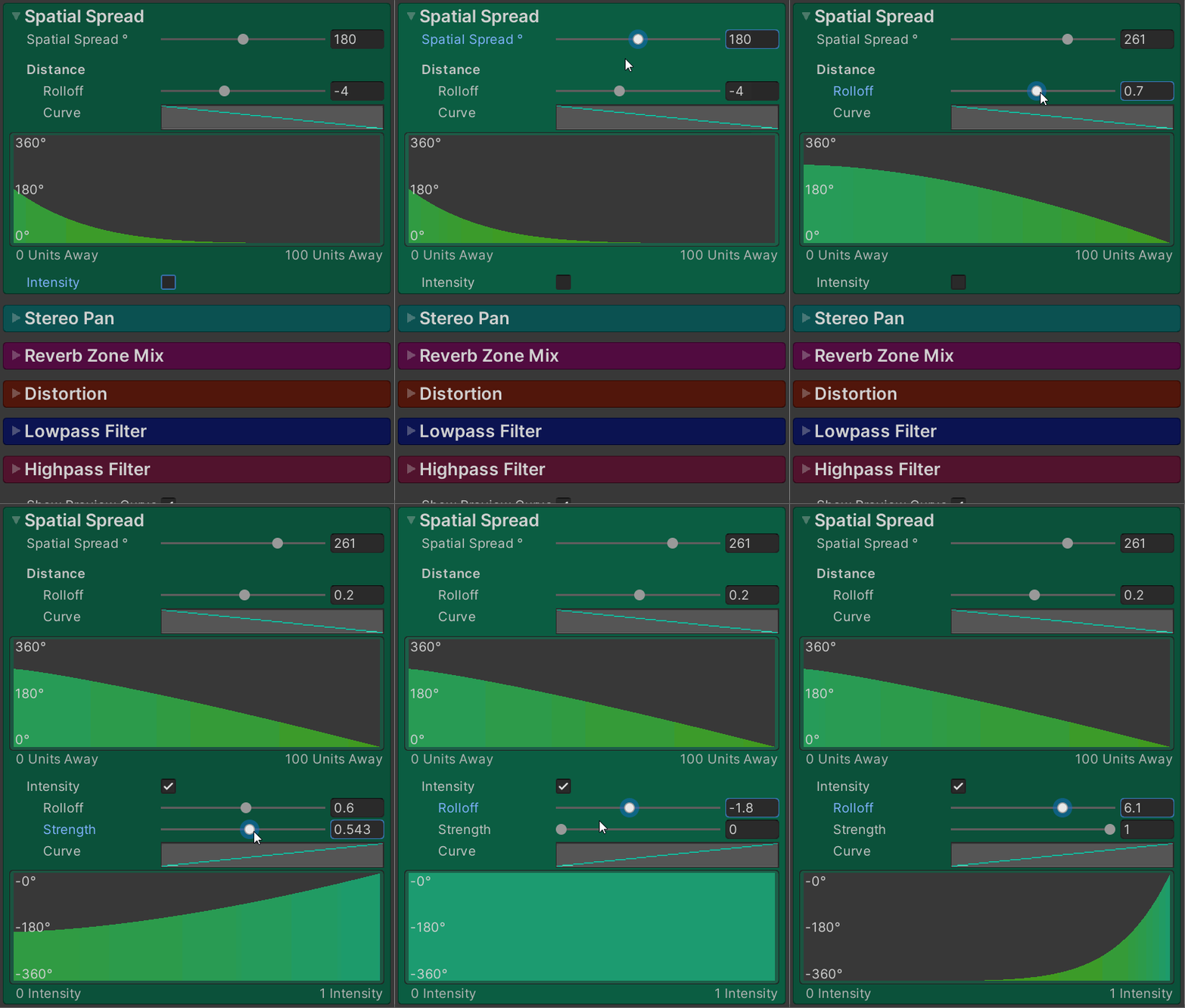
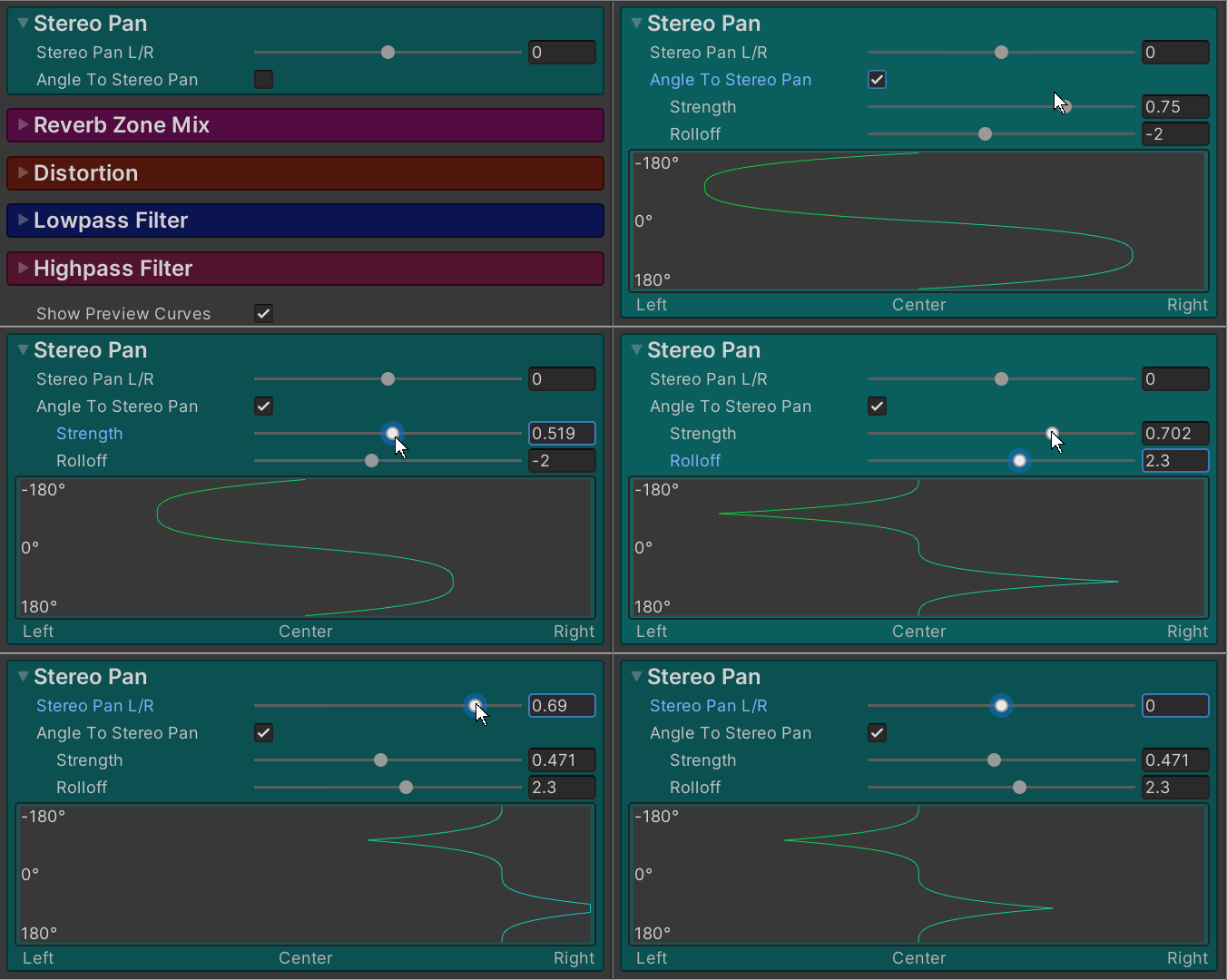
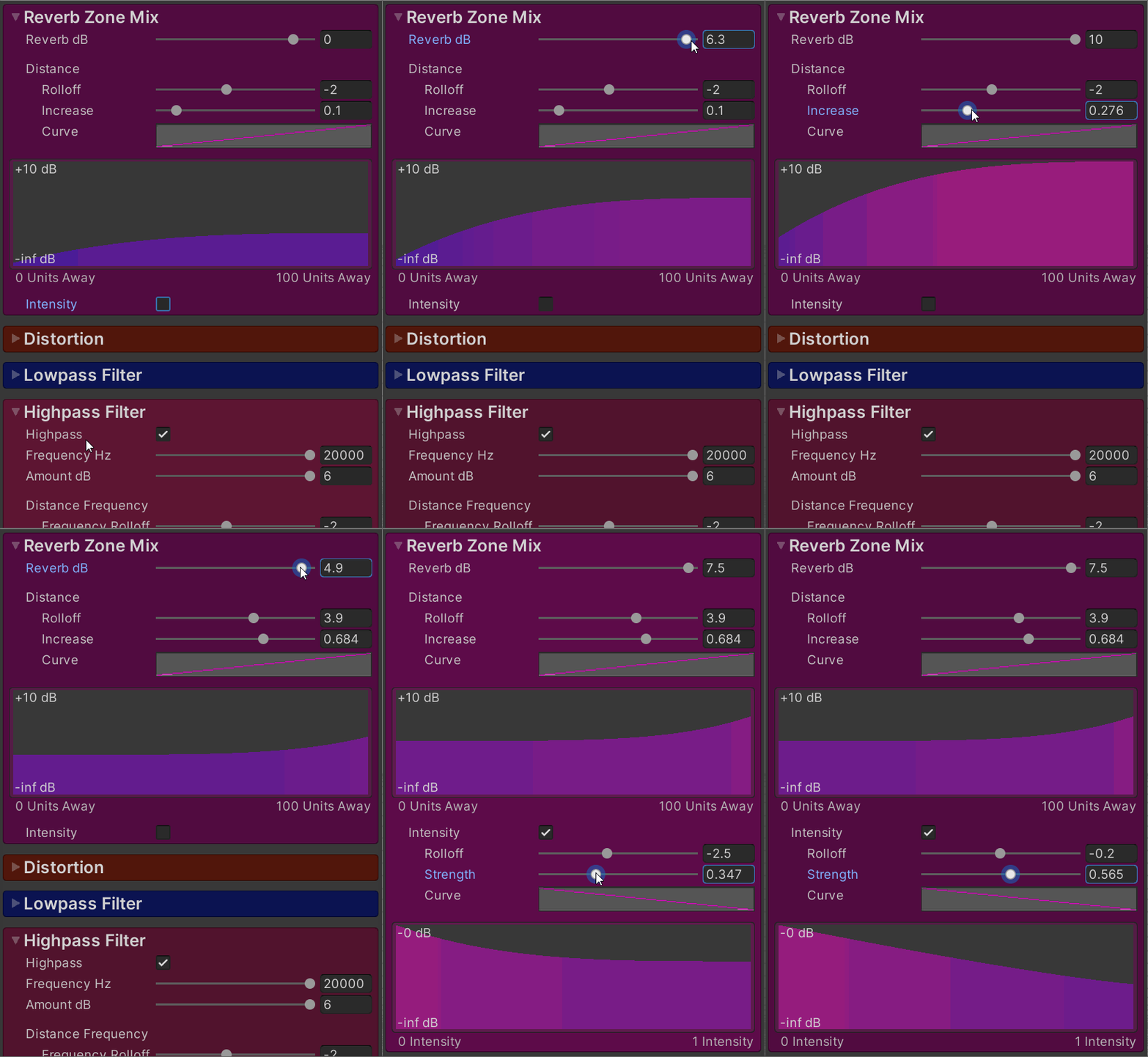
Here is a description of controls shared by multiple fields.
**Rolloff**\
The power of the rolloff.\
0 is linear.
**Curve**\
Curve of the value over distance or intensity.\
Distance: From 0 (close) to 1 (distant).\
Intensity: From 0 (soft) to 1 (hard).
**Strength**\
How much effect the distance/intensity should have.
**Increase**\
Increases the amount.
### Notes
Example note:
At the top of the [SoundContainer](/docs/soundcontainer.md) there is a text field which you can fill with notes.
### Presets
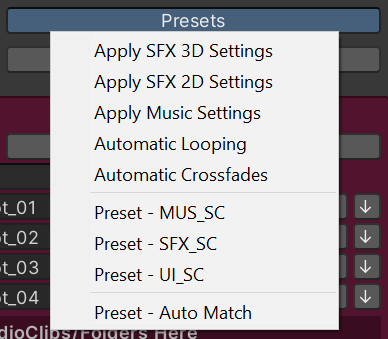
The “Presets” shown in the example picture above need to be created with the [SoundPreset](/docs/soundpreset.md) object.\
This info also shows up on button hover:
**SFX 3D**\
Enable Distance = true\
Spatial Blend = 1\
Never Steal Voice = false\
Never Steal Voice Effects = false\
Pitch Random = true\
Priority = 0.5\
Reverb Zone Mix = -0 dB
**SFX 2D**\
Enable Distance = false\
Spatial Blend = 0\
Never Steal Voice = false\
Never Steal Voice Effects = false\
Pitch Random = true\
Priority = 0.5\
Reverb Zone Mix = -0 dB
**SFX 2D**\
Enable Distance = false\
Spatial Blend = 0\
Never Steal Voice = false\
Never Steal Voice Effects = false\
Pitch Random = false\
Priority = 0.5\
Reverb Zone Mix = Negative Infinity dB
**Music**\
Enable Distance = false\
Spatial Blend = 0\
Never Steal Voice = true\
Never Steal Voice Effects = true\
Pitch Random = false\
Volume Random = false\
Priority = 1\
Reverb Zone Mix = Negative Infinity dB
**Automatic Looping**\
If the name of the selected [SoundContainers](/docs/soundcontainer.md) contains “loop” then it will automatically enable “Loop”, “Follow Position”, “Stop if Transform is Null” and “Random Start Position”.
**Automatic Crossfades**\
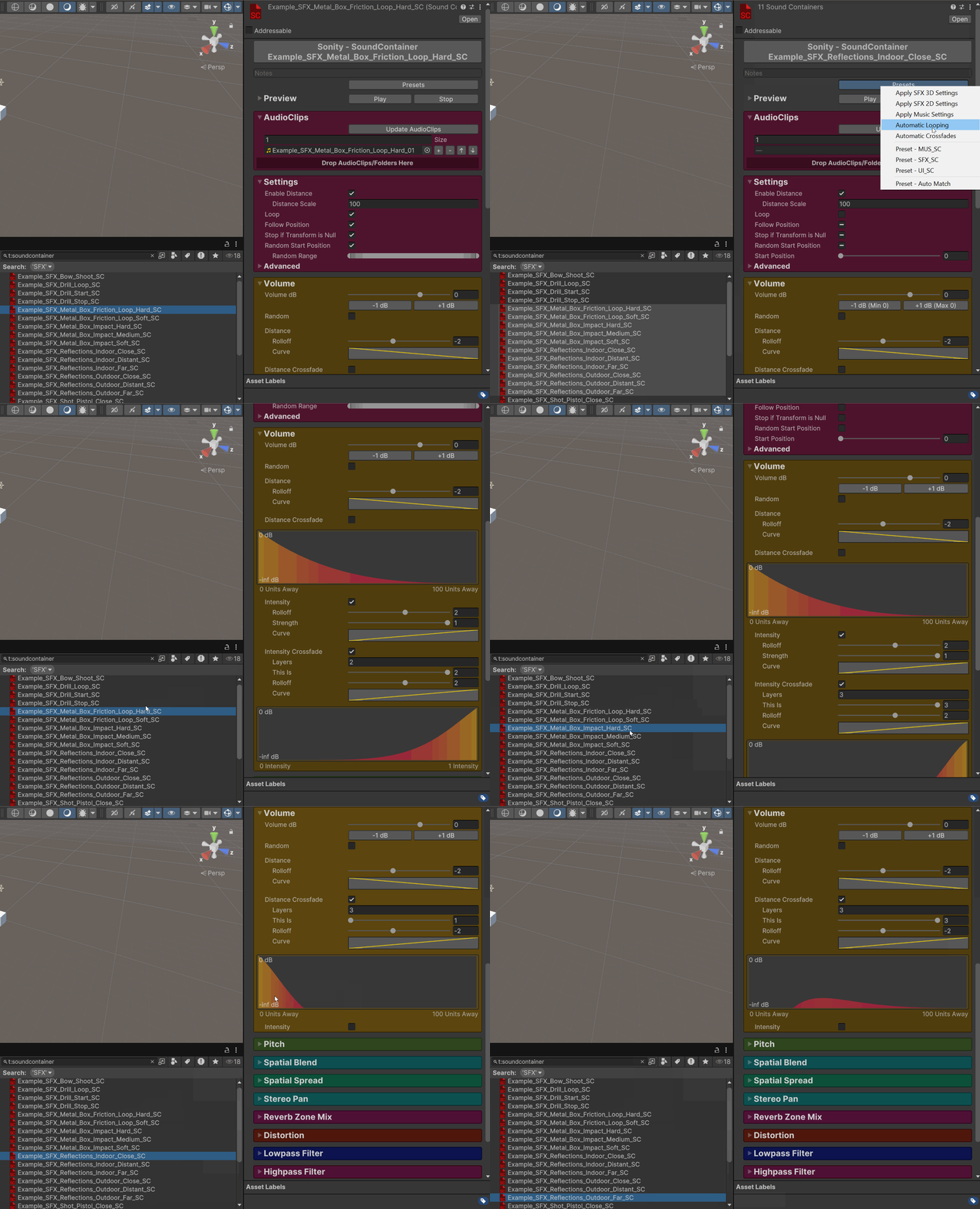
If the names of the selected [SoundContainers](/docs/soundcontainer.md) end in certain combinations it will automatically set up distance or intensity crossfades.\
It works on multiple groups at the same time.\
These are the combinations and their result:
**Distance Crossfade:**\
Close + Distant + Far = 3 layers\
Close + Distant = 2 layers\
Close + Far = 2 layers
**Intensity Crossfade:**\
Soft + Medium + Hard = 3 layers\
Soft + Hard = 2 layers
Example usage of Automatic Crossfades:
**SoundPresets**\
Create [SoundPreset](/docs/soundpreset.md) objects to get custom settings which you can apply to your [SoundContainers](/docs/soundcontainer.md) and [SoundEvents](/docs/soundevent.md).\
Either manually select the preset you want to apply in the dropdown, or use “Auto Match” to automatically apply the settings based on the name of the asset.
### Preview
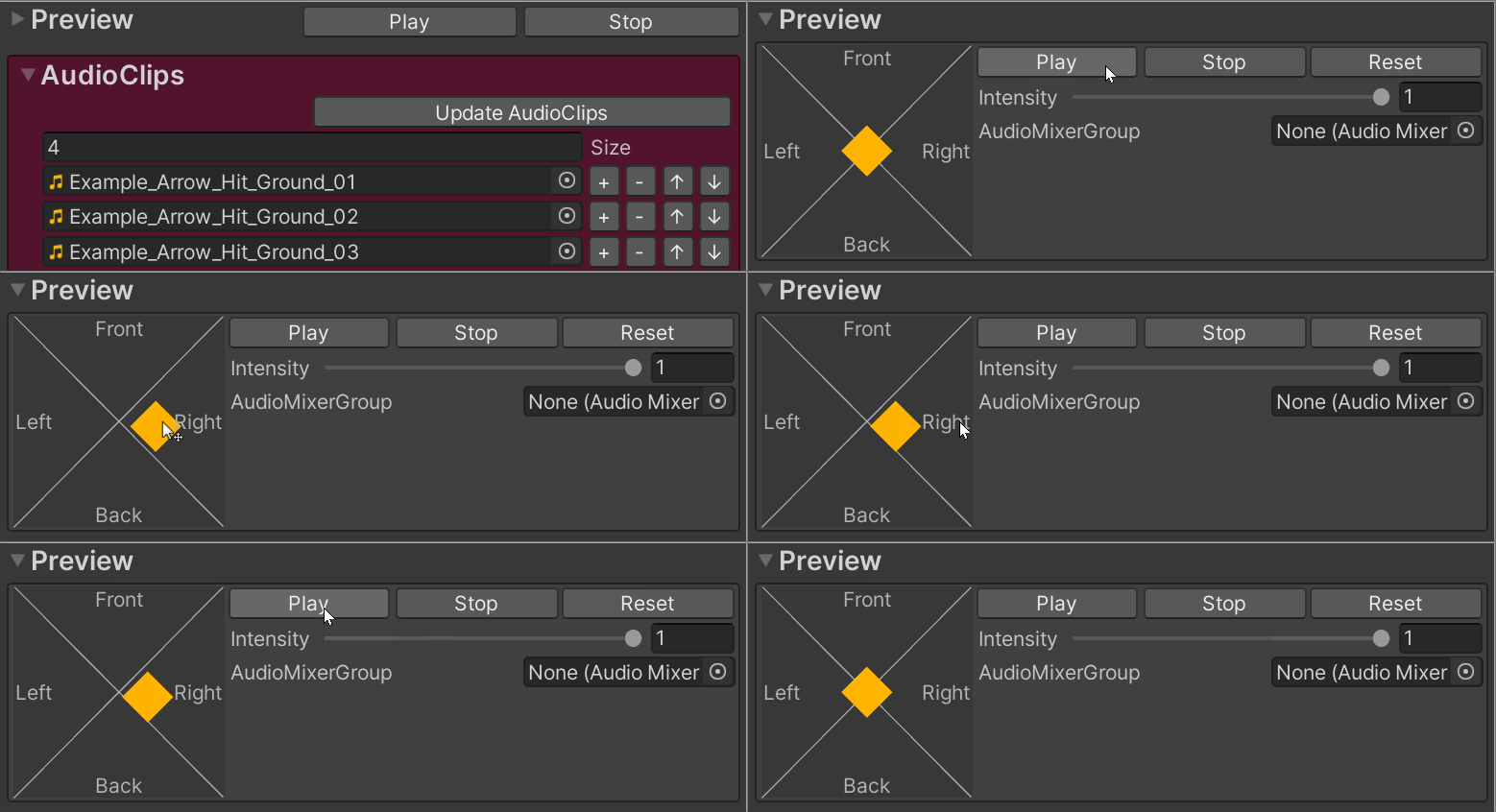
With the preview you can listen to the sounds in the editor.\
The preview handle enables you to move the sound around.
**Preview Shortcuts**\
Play: Ctrl+Q (Previews the selected [SoundEvent](/docs/soundevent.md) or [SoundContainer](/docs/soundcontainer.md)).\
Stop: Ctrl+W (Stops any playing preview of [SoundEvents](/docs/soundevent.md) and [SoundContainers](/docs/soundcontainer.md), press two times to skip fade out).\
They are rebindable in the Shortcuts window.
**Play**\
Previews the [SoundContainer](/docs/soundcontainer.md).\
Does not work if Unity cannot build the project, or if the game is paused.\
The default shortcut is Ctrl+Q.
**Stop**\
Press two times to skip fade out.\
The default shortcut is Ctrl+W.
**Reset**\
Resets the preview settings.
**Intensity**\
Controls the intensity value of the played [SoundContainers](/docs/soundcontainer.md).
**AudioMixerGroup**\
Only used for preview.
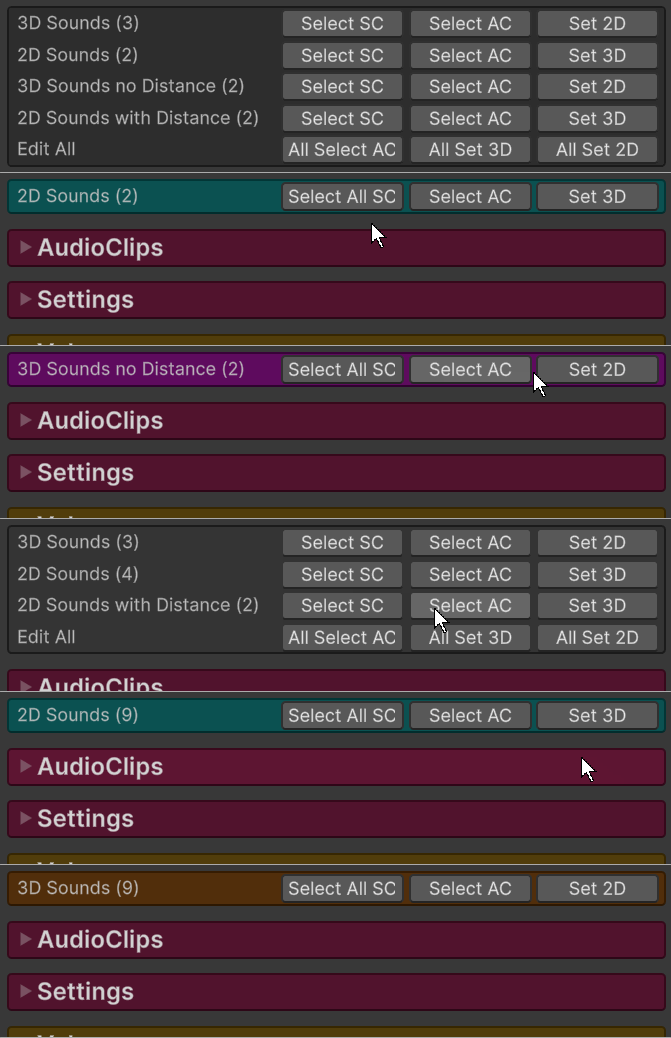
### Spatialization Info
Show and edit spatialization info for the selected [SoundContainers](/docs/soundcontainer.md).
**3D Sounds**\
All [SoundContainers](/docs/soundcontainer.md) with Spatial Blend > 0 and Distance Enabled.
**2D Sounds**\
All [SoundContainers](/docs/soundcontainer.md) with Spatial Blend = 0 and Distance Disabled.
**3D Sound no Distance**\
All [SoundContainers](/docs/soundcontainer.md) with Spatial Blend > 0 and Distance Disabled.
**2D Sound with Distance**\
All [SoundContainers](/docs/soundcontainer.md) with Spatial Blend = 0 and Distance Enabled.
**Select SC**\
Selects [SoundContainers](/docs/soundcontainer.md) matching the specific settings.
**Select All SC**\
Selects All [SoundContainers](/docs/soundcontainer.md) in the same folder disregarding subfolders.
**Select AC**\
Selects AudioClips of the [SoundContainers](/docs/soundcontainer.md) matching the specific settings.
**Set 3D**\
Sets the selected [SoundContainers](/docs/soundcontainer.md) to Spatial Blend 1 and Distance Enabled.
**Set 2D**\
Sets the selected [SoundContainers](/docs/soundcontainer.md) to Spatial Blend 0 and Distance Disabled.
**All Select AC**\
Selects all AudioClips of the selected [SoundContainers](/docs/soundcontainer.md) .
**All Set 3D**\
Sets all selected [SoundContainers](/docs/soundcontainer.md) to Spatial Blend 1 and Distance Enabled.
**All Set 2D**\
Sets all selected [SoundContainers](/docs/soundcontainer.md) to Spatial Blend 0 and Distance Disabled.
### AudioClips
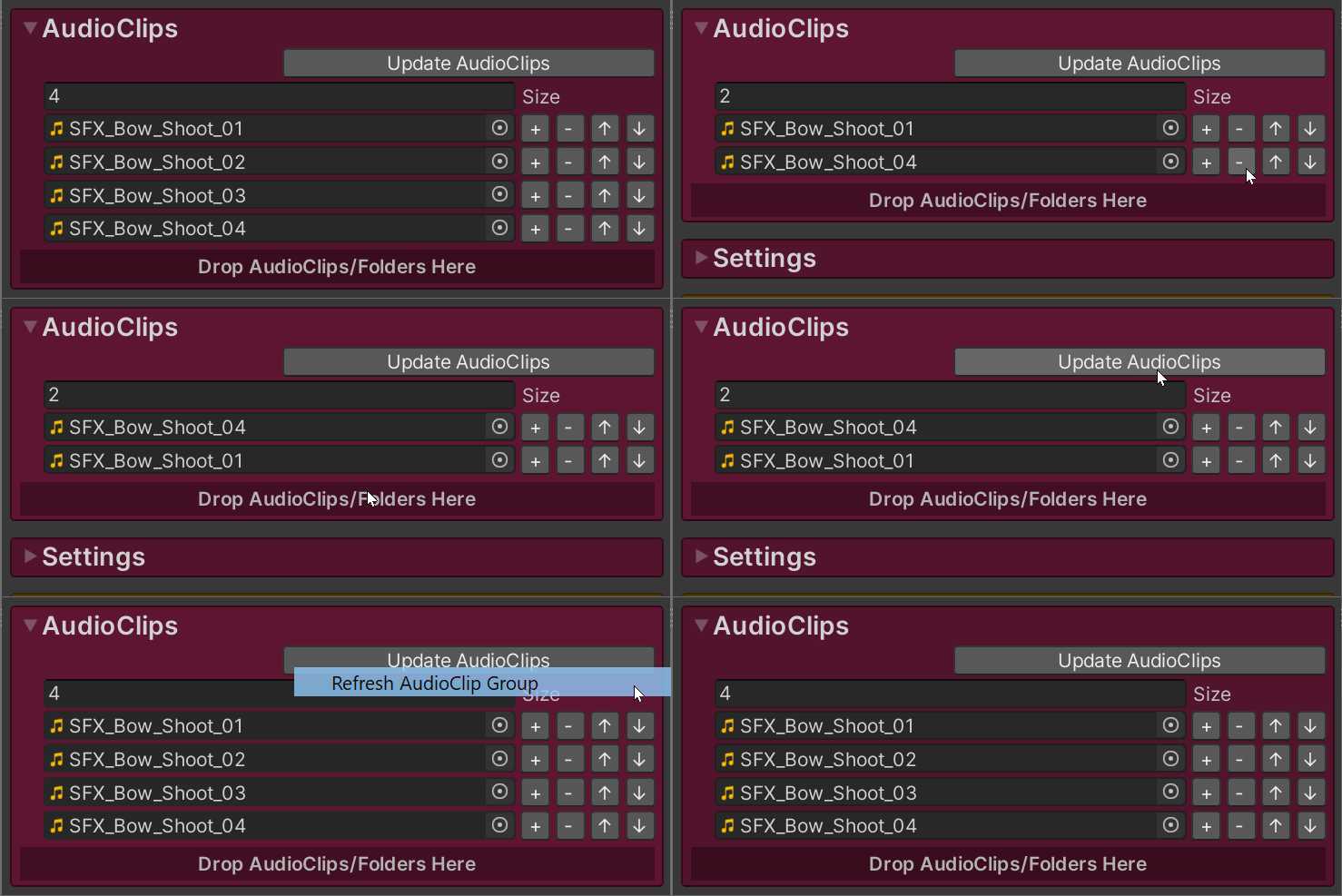
This is where you assign the AudioClips which are going to be used when the [SoundContainer](/docs/soundcontainer.md) is played.
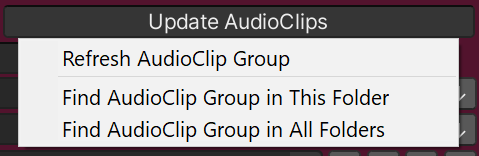
Update AudioClips
Updating AudioClips can be used to automatically add/remove variations.\
Can be used on multiple items at once (tip: search “t:SoundContainer”).
**Refresh AudioClip Group**\
Adds all AudioClips with the same name as the first AudioClip (disregarding numbers, e.g. 01 02).
**Find AudioClip Group**\
Automatically finds all AudioClips containing the same name as this [SoundContainer](/docs/soundcontainer.md) (disregarding \_SC, numbers).\
If no matching AudioClips are found, it will try and remove one character at the end of the name at a time until it finds a hit.
**Drop AudioClips/Folders Here**\
Here you can drag and drop AudioClips or folders with AudioClips in them.
### Settings
{% hint style="info" %}
❕ Tip: All the info is also available as tooltips if you hover over properties.
{% endhint %}
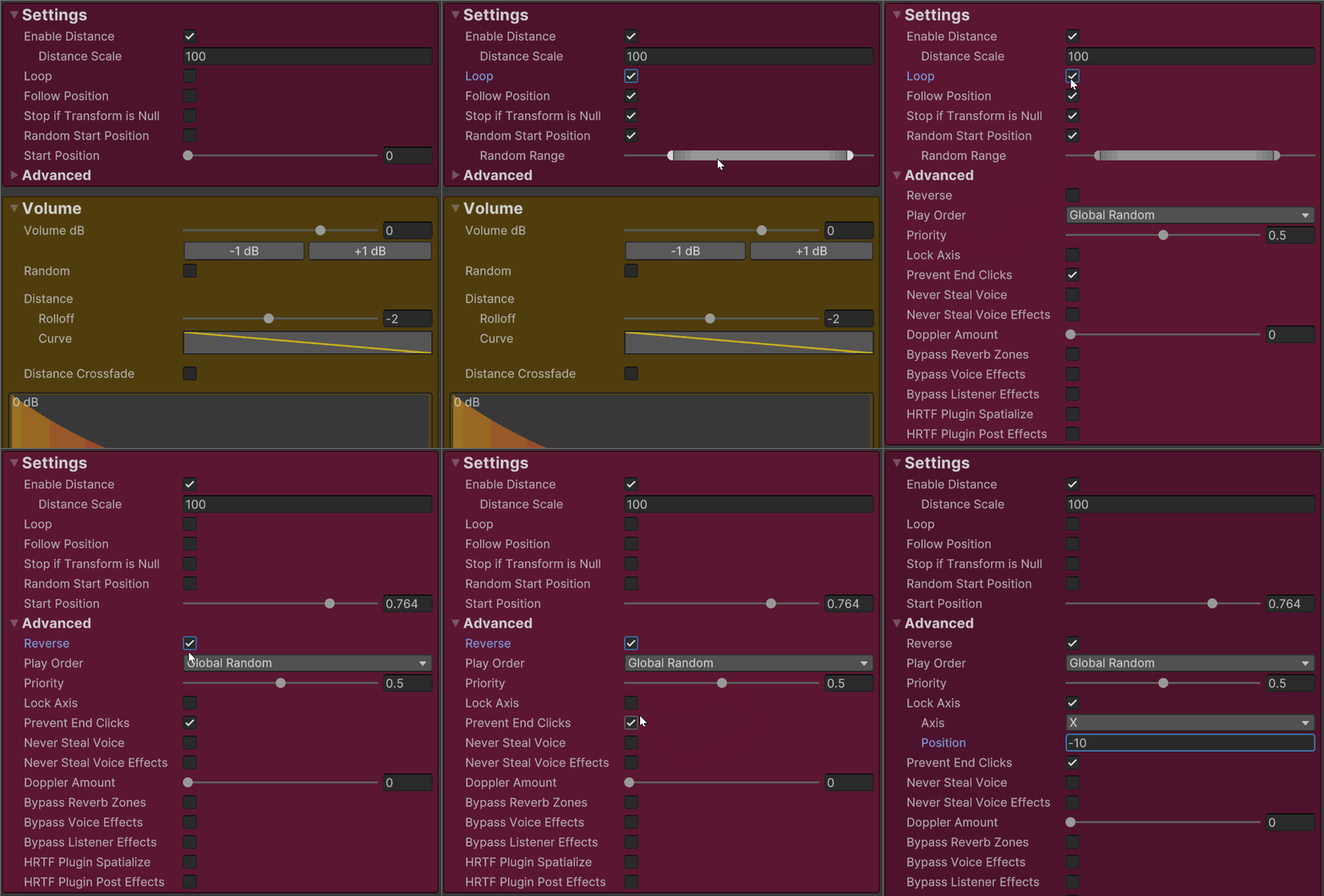
**Enable Distance**\
Otherwise the [SoundContainer](/docs/soundcontainer.md) will not be affected by distance (disable for music etc).
**Distance Scale**\
Range scale multiplier. It is multiplied by the [Distance Scale](/docs/soundmanager.md#settings) of the [SoundManager](/docs/soundmanager.md).
Distance Scale: **If X set to Y**\
Shows up if you have select multiple [SoundContainers](/docs/soundcontainer.md) with Distance Enabled.\
Useful for batch editing a lot of assets where you want to change the Distance Scale for many sounds.
Distance Scale: **Replace Distance**\
Replaces any Distance Scale matching X with the Y value.\
Also shows the Min and Max value for Distance Scale of the selected objects.
**Loop**\
Makes the sound loop.\
If you use "Create Assets from Selection" and the AudioClip name contains "loop".\
Then it will automatically enable “Loop”, “Follow Position”, “Stop if Transform is Null” and “Random Start Position”.
**Follow Position**\
If the [SoundContainer](/docs/soundcontainer.md) should follow the given Transform position.
**Stop if Transform is Null**\
Automatically stops the sound if the Transform it's played at is destroyed (either the owner or position Transform).\
Useful safety precaution for loops.
**Random Start Position**\
Starts the sound at a random position.\
Overrides the Start Position setting.\
Useful for loops.
**Random Range**\
Min/max range within the sound can start at.
**Start Position**\
0 is the start and 1 is the end.
### Advanced Settings
**Reverse**\
If enabled the AudioClip will be played backwards.\
Make sure to set the start position to the end.\
Reverse is only supported for AudioClips which are stored in an uncompressed format or will be decompressed at load time.
**Play Order**\
Determines in which order the AudioClips will be played.
Play Order: **Global Random**\
All [SoundEvents](/docs/soundevent.md) will share the same global random AudioClip pool, which ensures less repetition.\
Uses a pseudo random function remembering half of the length of available AudioClips it last played to avoid repetition.
Play Order: **Local Random**\
Same as global random except its per [SoundEvent](/docs/soundevent.md) owner.
If enabled all will share the same global random AudioClip pool, which ensures less repetition.\
Otherwise random AudioClip per owner is used.\
The randomizer either way uses a pseudo random function remembering which AudioClips it last played to avoid repetition.
**Priority**\
The priority the Voice has when Voice stealing.\
Also the priority the Voice Effects has when Voice Effects stealing.\
1 is high priority, 0.5 is default priority and 0 is low priority.\
It's multiplied with the volume of the Voice when evaluating final priority.
**Lock Axis**\
Locks the selected axis to the selected position.\
Useful for 2D games if you want to lock the sound to a position along an axis.
Lock Axis: **Axis**\
The axis to lock.
Lock Axis: **Position**\
The position to set the locked axis to.
**Prevent End Clicks**\
If enabled it will fade out the volume 0.1 seconds before the end of the AudioClip to prevent clicks.\
If the AudioClips is shorter than 0.1 seconds or set to loop the fade will be skipped.\
DC offsets and some settings in Unity make an AudioClip click at the end.\
❕ Tip: If you still experience sporadic clicks, try changing the Load Type of the AudioClips to e.g. "Compressed In Memory", it might help.
**Never Steal Voice**\
The [SoundManager](/docs/soundmanager.md) will never steal this Voice if the Voice Limit is reached (use on music etc).
**Never Steal Voice Effects**\
The [SoundManager](/docs/soundmanager.md) will never steal the Voice Effects on this Voice if the Voice Effect Limit is reached (use on music etc).
**Doppler Amount**\
How much the pitch of the sound is changed by the relative velocity between the AudioListener and the AudioSource.
**Bypass Reverb Zones**\
Bypasses any reverb zones
**Bypass Voice Effects**\
Bypasses any effects on the AudioSource, e.g. Distortion and Filters.\
Voice effects are automatically bypassed if you don't have distortion/lowpass/highpass enabled.
**Bypass Listener Effects**\
Bypasses any effects on the listener
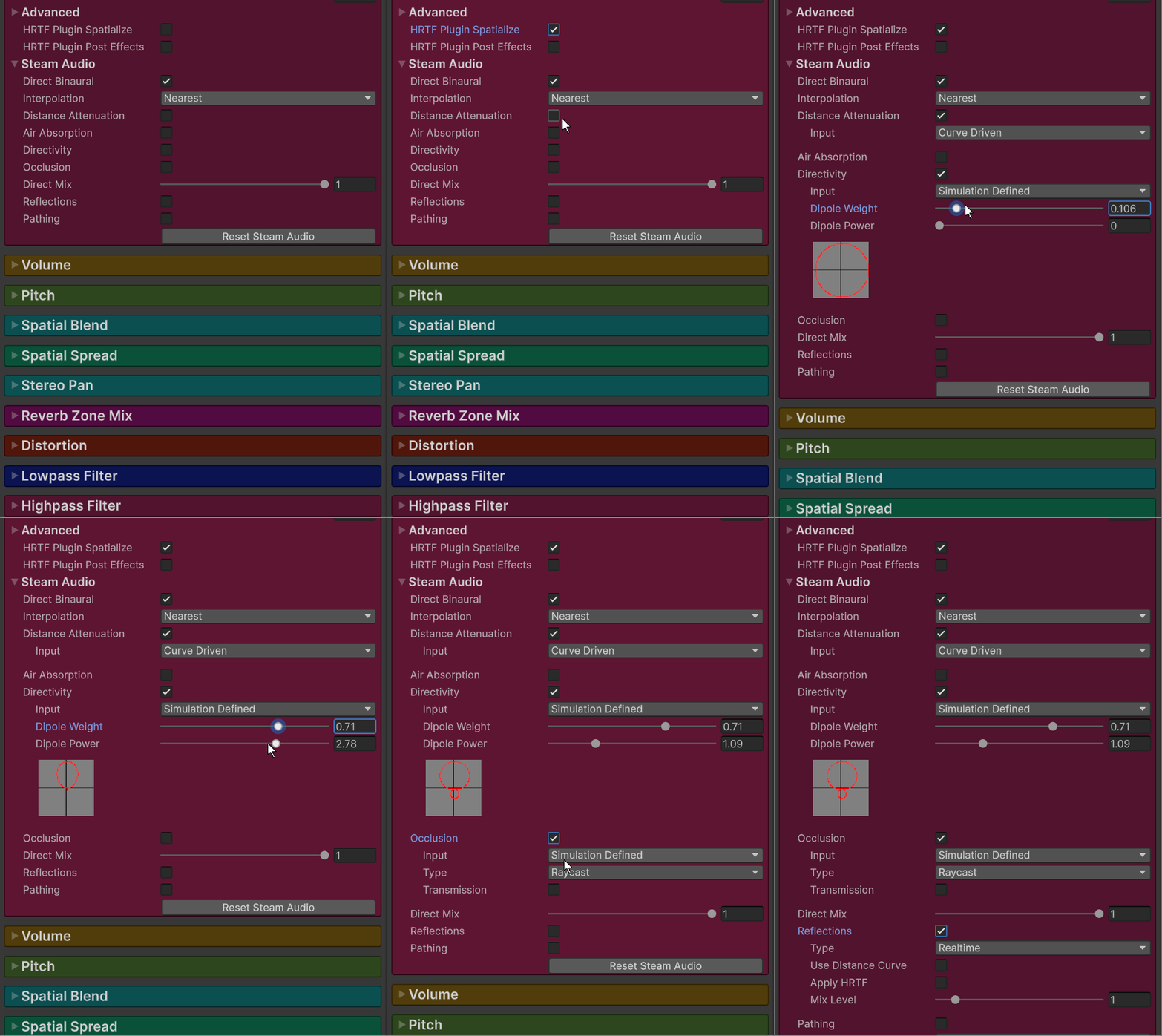
**HRTF Plugin Spatialize**\
Enables spatialization using external third party plugins.\
You need to add the plugin and select it in the project audio settings.\
These are some examples of compatible spatializers [(read more here)](https://docs.unity3d.com/Manual/VRAudioSpatializer.html)
* Steam Audio Spatializer
* Oculus Spatializer Unity
* Google Resonance Audio Spatializer
* Vive 3DSP Audio SDK Spatializer
* Microsoft Spatializer
* Apple PHASE Spatializer
* Qualcomm 3D Spatializer
**HRTF Plugin Post Effects**\
If the spatialization plugin effect happens before before or after any effects.
**No PlayOneShot Optimize**\
If "Allow PlayOneShot Optimize" is enabled in the SoundManager then then Sonity will play Voices with PlayOneShot() instead of Play().
Some features are disabled when using PlayOneShot, like:\
SoundContainer PreventEndClicks\
SoundEvent.GetLastPlayedClipTimeSeconds()\
SoundEvent.GetLastPlayedClipTimeRatio()
But it will increase performance, so it might be useful for low-end platforms.
If disabled in the SoundContainer, PlayOneShot will not be used.\
Which is useful if you need get etc AudioSource.time from oneshots etc.
It is used under certain conditions and is evaluated in this order:\
Skipped if: Loop is enabled\
Skipped if: Trigger On Tail is enabled\
Skipped if: Random Start Position is enabled\
Skipped if: Start Postion is more than 0 (which it also is when playing reversed)\
Enabled if: Distance is disabled and Spatial Blend is 0\
Enabled if: Force 2D is enabled\
Skipped if: Follow Position is enabled, in the SoundContainer or Parameters\
Enabled if: None of the above is triggered
### Steam Audio Settings
Read the "[Steam Audio](/docs/soundcontainer/steam-audio-settings.md)" sub-page to learn more.
### Volume
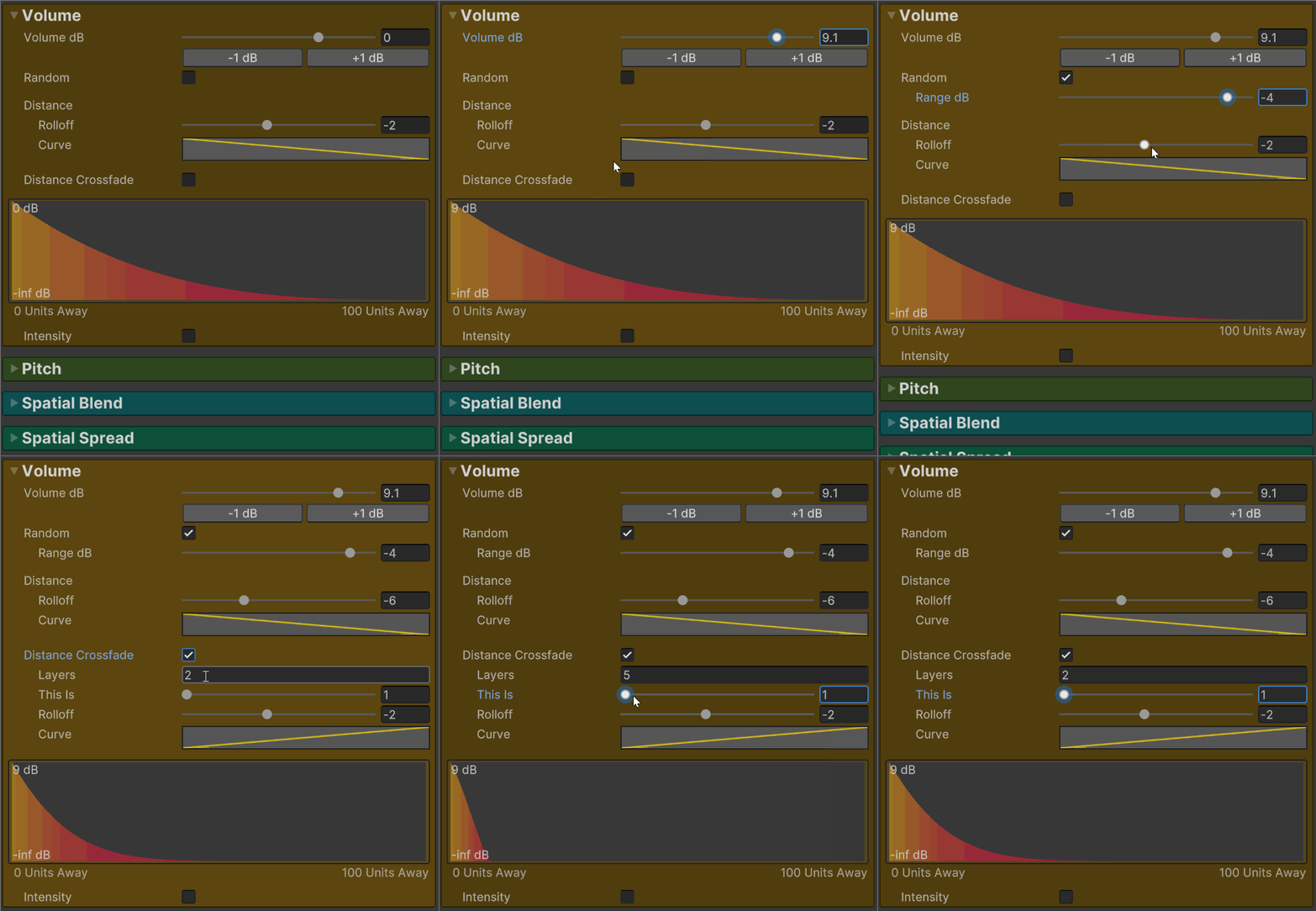
**Volume dB**\
Volume offset in decibel.\
If you want to be able to raise the volume and not just lower it you have 2 options:
**Increase Volume - Option A:**\
Enable "Enable Volume Increase" in the [SoundManager](/docs/soundmanager.md).\
This will enable you to raise the volumes of [SoundContainers](/docs/soundcontainer.md) and [SoundEvents](/docs/soundevent.md) by +24 dB each and [SoundVolumeGroups](/docs/soundvolumegroup.md) by +12dB.
**Increase Volume - Option B:**\
Select all the [SoundContainers](/docs/soundcontainer.md) and lower the volume by -20 dB with the -1dB button.\
Then to compensate you can increase the global volume with an Audio Mixer (which you then can set to +20 dB).
**-1 dB**\
Lowers the relative volume of all the selected [SoundContainers](/docs/soundcontainer.md).\
Useful for example if you want to raise the volume of one [SoundContainer](/docs/soundcontainer.md) and keep the relative volume.\
Because then you can lower all of them to get more headroom.\
If multiple [SoundContainers](/docs/soundcontainer.md) are selected it will show the lowest volume.
**+1 dB**\
Raises the relative volume of all the selected [SoundContainers](/docs/soundcontainer.md).\
Useful for example if you want to set the loudest volume to 0 dB but keep the relative volumes.\
If multiple [SoundContainers](/docs/soundcontainer.md) are selected it will show the highest volume.
**Distance Crossfade**\
With distance crossfade you can easily crossfade between different sounds over distance.\
For e.g. gunshots you could add sounds with close, distant and far perspectives.\
You’d set the “Layers” setting to 3 for all the [SoundContainers](/docs/soundcontainer.md).\
Then you’d set “This Is” of close to 1, distant to 2 and far to 3.
Distance Crossfade: **Layers**\
The number of layers the crossfade is based on. You must have at least 2 layers.
Distance Crossfade: **This is**\
Which layer this is. Set up with other [SoundContainers](/docs/soundcontainer.md) for the other layers. Lower numbers are closer and higher are more distant.
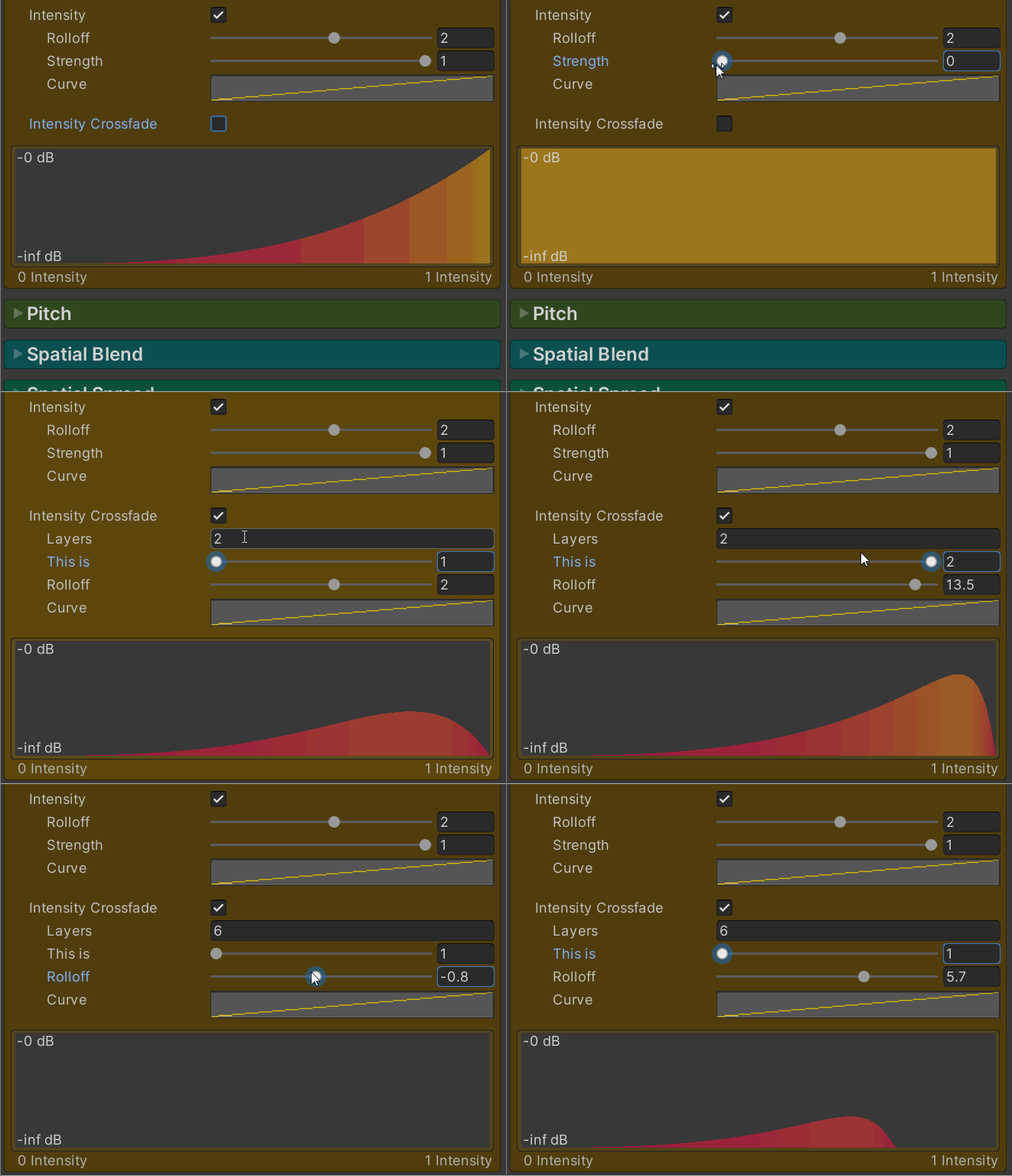
**Intensity**\
Changes the volume over intensity.\
Use on for example physics sounds where you pass the velocity with a [SoundParameterIntensity](/docs/soundparameter/soundparameterintensity.md).
**Intensity Crossfade**\
With intensity crossfade you can easily crossfade between different sounds over intensity.\
For e.g. impacts you could add sounds with hard, medium and soft variations.\
You’d set the “Layers” setting to 3 for all the [SoundContainers](/docs/soundcontainer.md).\
Then you’d set “This Is” of hard to 3, medium to 2 and soft to 1.
Intensity Crossfade: **Layers**\
The number of layers the crossfade is based on. You must have at least 2 layers.
Intensity Crossfade: **This is**\
Which layer this is. Set up with other [SoundContainers](/docs/soundcontainer.md) for the other layers. Higher numbers are harder and lower numbers are softer.
Intensity Crossfade example:
### Pitch
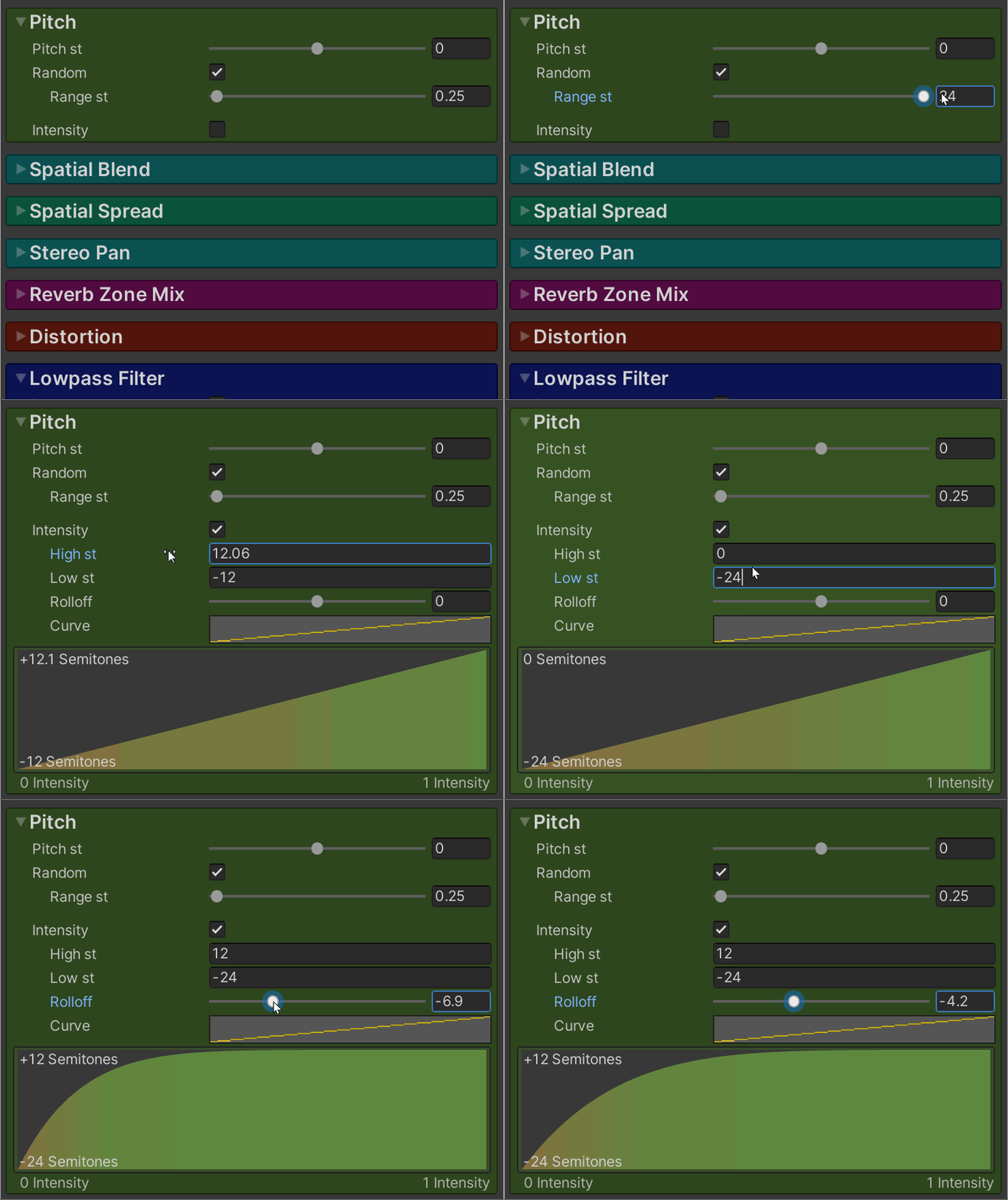
Controls the pitch (in semitones).
**Intensity**\
Changes the pitch over intensity.\
Use on for example car sounds where you pass the speed with a [SoundParameterIntensity](/docs/soundparameter/soundparameterintensity.md).
Intensity: **Low st**\
The lowest intensity in semitones. Range -128 to 128.
Intensity: **High st**\
The highest intensity in semitones. Range -128 to 128.
### Spatial Blend
Controls the spatial blend. 0 is 2D (not spatialized) and 1 is 3D (spatialized).
**Intensity**\
Changes the spatial blend over intensity.
### Spatial Spread
Controls the spatial spread (in degrees).\
Only the 3D (spatialized) part of the sound is affected by the spatial spread.
**Intensity**\
Changes the spatial spread over intensity.
### Stereo Pan
Controls the stereo pan. -1 is left and 1 right.\
Only the 2D part of the sound is affected by the stereo pan.
**Angle To Stereo Pan**\
Pans the sound depending on the angle between the Voice and the AudioListener.
### Reverb Zone Mix
Controls the reverb zone mix (in decibel).
**Intensity**\
Changes the reverb zone mix over intensity.
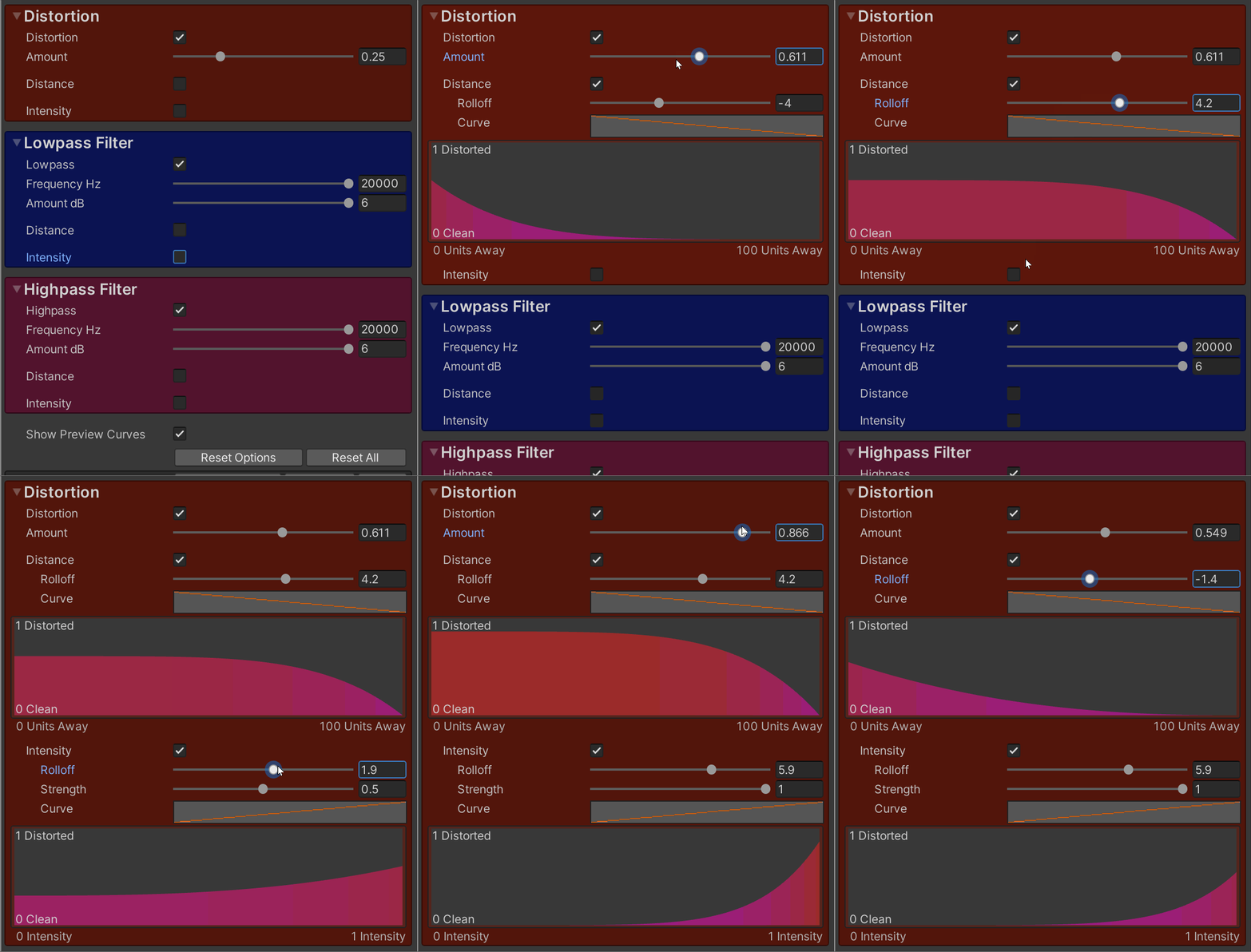
### Distortion
Waveshaper type distortion.\
0 is clean, 1 is distorted.\
[SoundContainer ](/docs/soundcontainer.md)Voice Effects are applied per Voice.\
If distortion amount is 0 the effect is disabled internally for performance.\
The number of active Voice Effects are limited by the “Voice Effect Limit” on the [SoundManager](/docs/soundmanager.md).\
DSP effects are not available in WebGL.
**Intensity**\
Changes the distortion over intensity.\
Use on for example explosion sounds where you pass the size of the explosion with a [SoundParameterIntensity](/docs/soundparameter/soundparameterintensity.md).
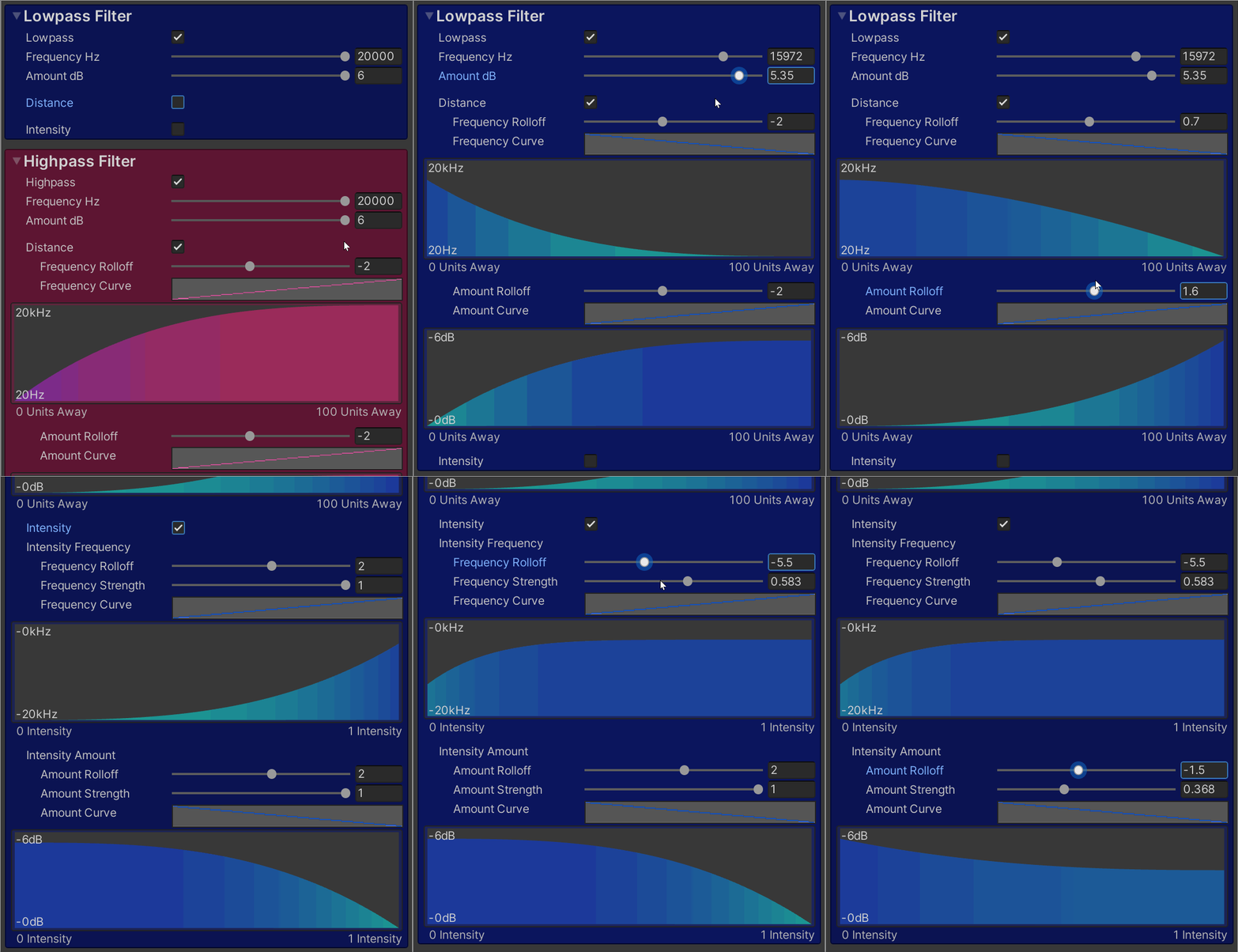
### Lowpass
Lowpass filter with a variable amount.\
Maximum of 6dB per octave.\
[SoundContainer ](/docs/soundcontainer.md)Voice Effects are applied per Voice.\
If frequency is 20,000 Hz or amount is 0 dB the effect is disabled internally for performance.\
The number of active Voice Effects are limited by the “Voice Effect Limit” on the [SoundManager](/docs/soundmanager.md).\
DSP effects are not available in WebGL.
**Intensity**\
Changes the lowpass over intensity.\
Use on for example occluded sounds where you pass the amount of occlusion with [SoundParameterIntensity](/docs/soundparameter/soundparameterintensity.md).
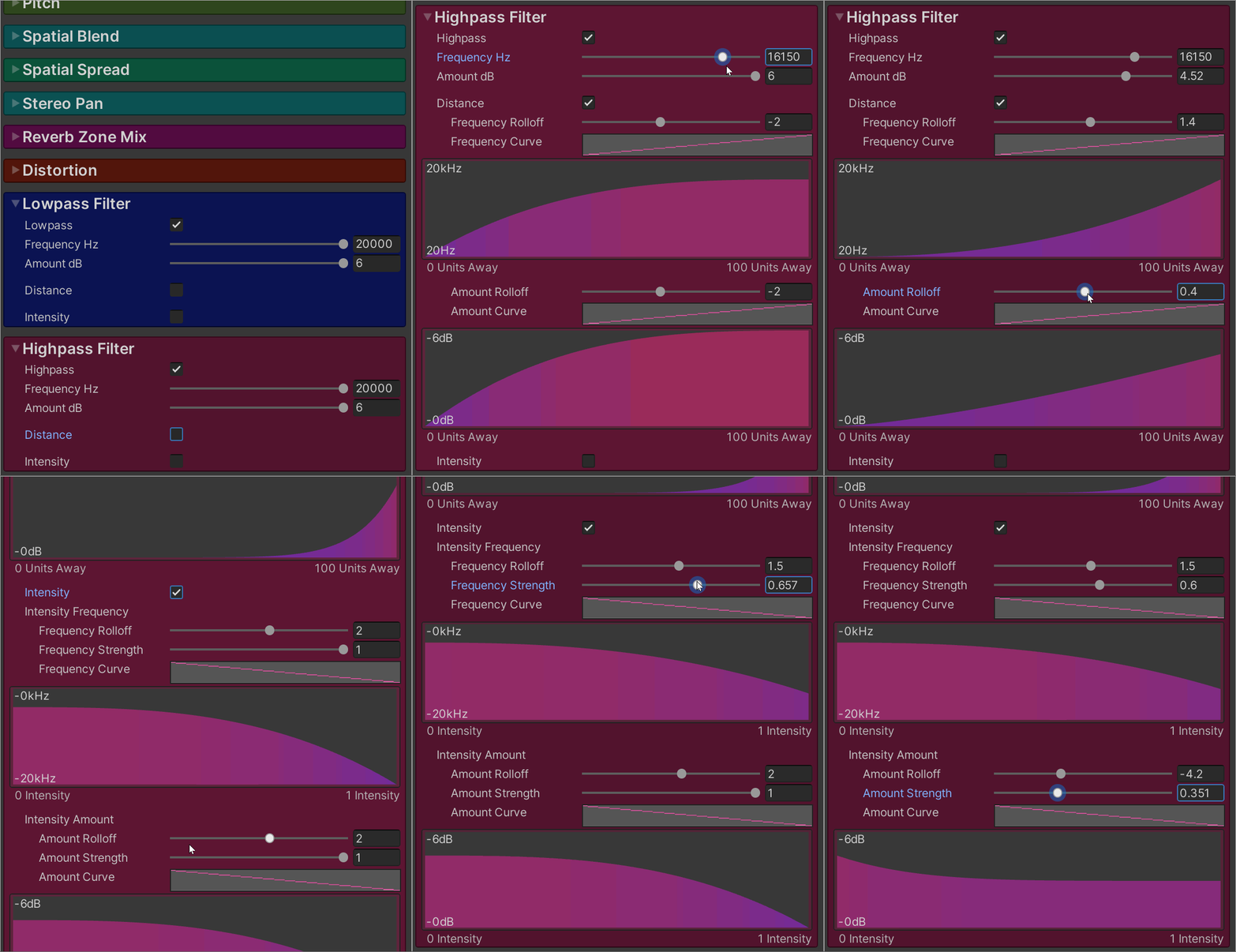
### Highpass
Highpass filter with a variable amount.\
Maximum of 6dB per octave.\
[SoundContainer](/docs/soundcontainer.md) Voice Effects are applied per Voice.\
If frequency is 20 Hz or amount is 0 dB the effect is disabled internally for performance.\
The number of active Voice Effects are limited by the “Voice Effect Limit” on the [SoundManager](/docs/soundmanager.md).\
DSP effects are not available in WebGL.
**Intensity**\
Changes the highpass over intensity.\
Use on for example occluded sounds where you pass the amount of occlusion with [SoundParameterIntensity](/docs/soundparameter/soundparameterintensity.md).
### Sonity GUID
Sonity uses cached GUIDs for object comparison.\
This solves problems where object equality isn't always the same when using e.g. addressables.\
The Sonity AssetPostprocessor automatically saves the GUIDs for objects.\
If you have any missing GUIDs (when upgrading) you can run:\
"Tools/Sonity 🔊/Tools/Reserialize - All Sonity Assets".\
Sonity GUID by [Tobias Johansson](https://www.knackelibang.com/)