> For the complete documentation index, see [llms.txt](https://sonity.gitbook.io/docs/llms.txt). Markdown versions of documentation pages are available by appending `.md` to page URLs; this page is available as [Markdown](https://sonity.gitbook.io/docs/soundphysics.md).
# SoundPhysics
The SoundPhysics component can be used to easily play physics sounds
(SoundPhysics is remade in Sonity 1.0.5 with expanded functionality)
[SoundPhysics](/docs/soundphysics.md) is a component used for easily playing [SoundEvents](/docs/soundevent.md) on physics interactions.\
[SoundPhysics](/docs/soundphysics.md) is split up into 3D/2D versions with and without friction because of performance reasons.\
If friction sounds aren’t needed and performance is a priority then use the [SoundPhysics](/docs/soundphysics.md) with no friction.\
A Rigidbody/Rigidbody2D is required on this object.\
One or several Collider/Collider2D should be placed on this object or its children.\
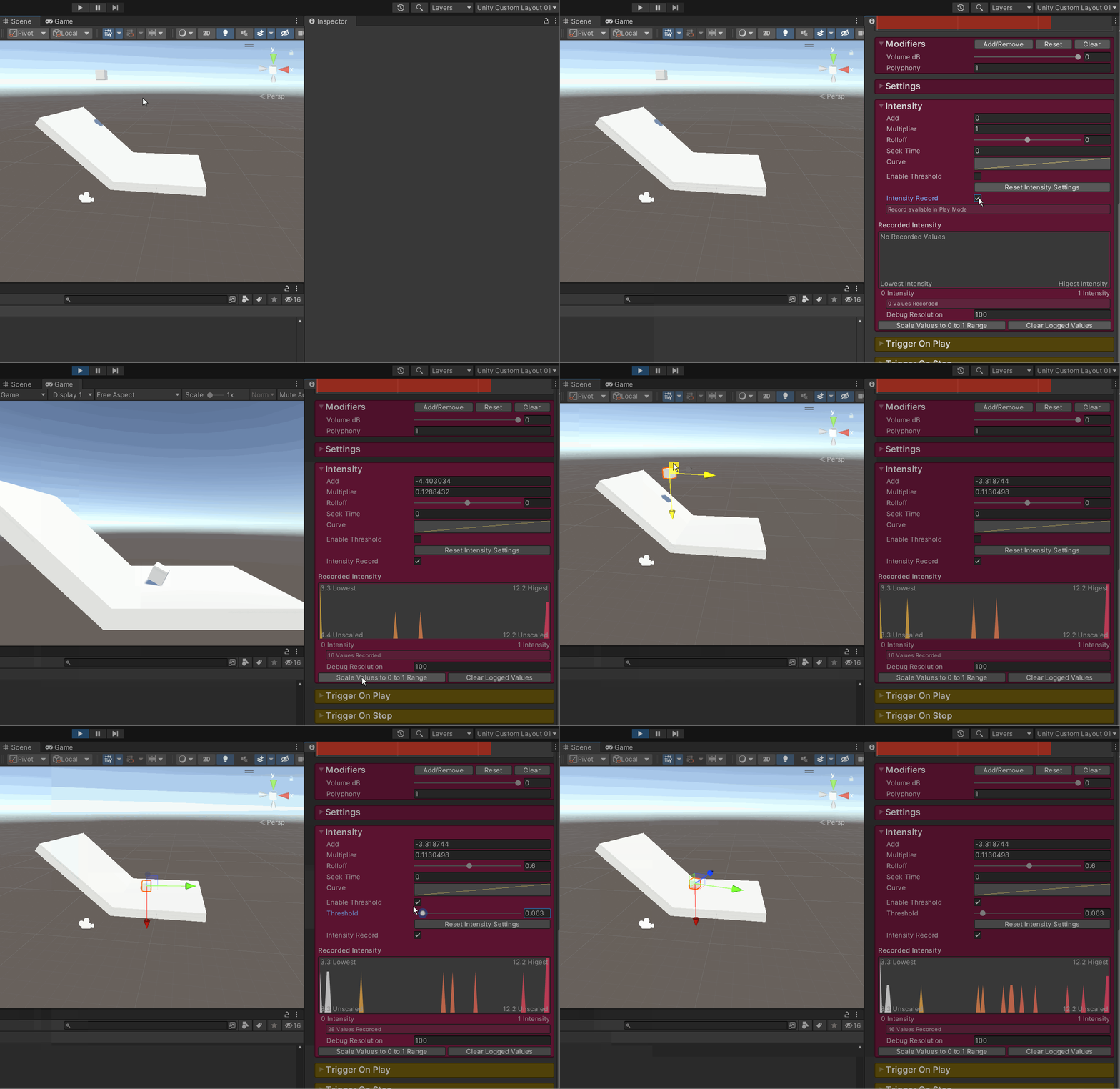
Use intensity record in the [SoundEvent](/docs/soundevent.md) for easy scaling of the velocity into a 0 to 1 range.\
All [SoundPhysics](/docs/soundphysics.md) components are multi-object editable.
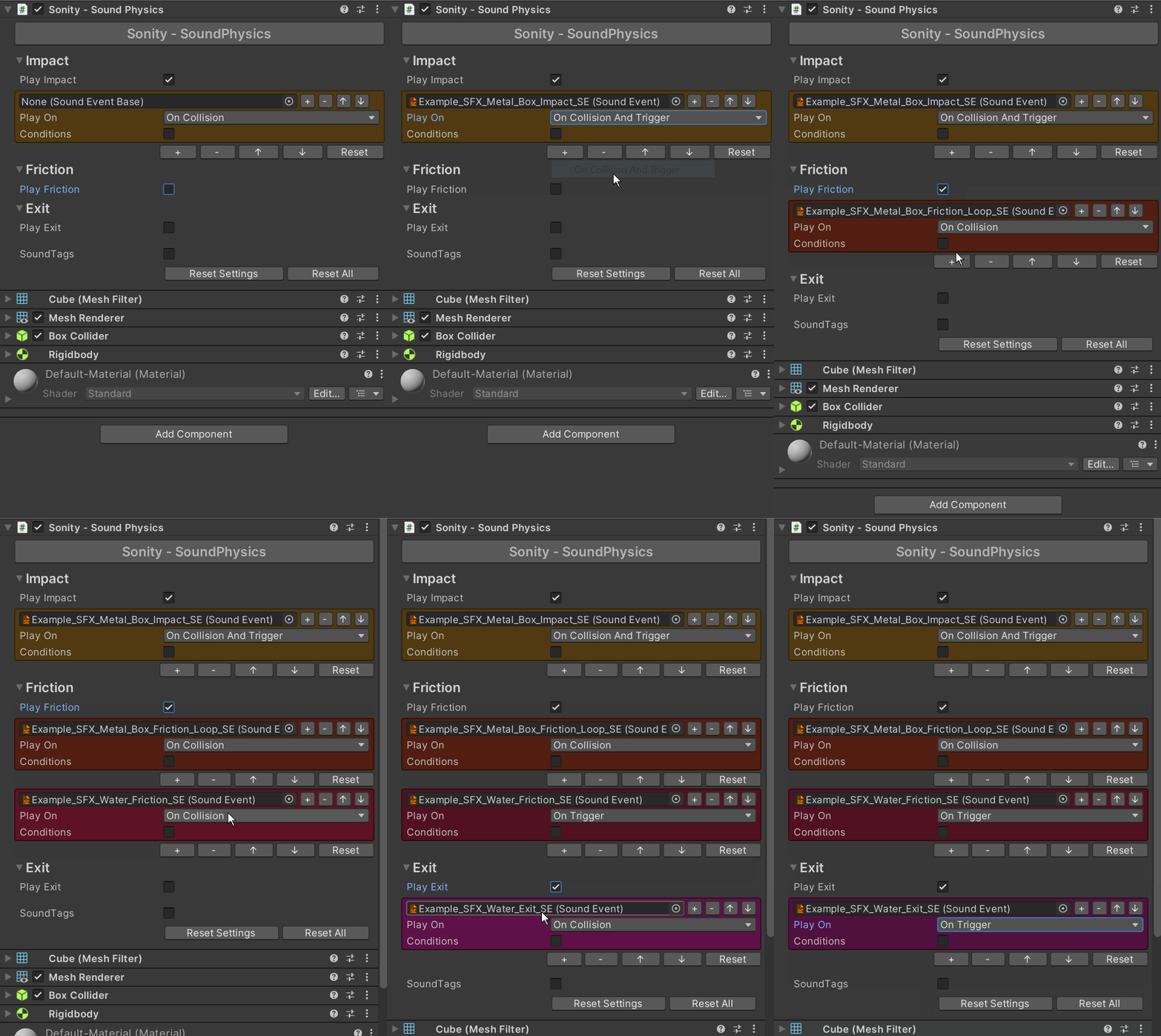
**Impact**\
Is triggered when the object starts touching a collider.\
OnCollision uses velocity from Collision.relativeVelocity.magnitude and the position of the Collision.contacts with the highest impulse.magnitude.\
OnTrigger uses velocity from Rigidbody.velocity.magnitude.
**Friction**\
Is triggered when the object is continuously touching a collider.\
Uses velocity from Rigidbody.velocity.magnitude.
**Exit**\
Is triggered when the object stops touching a collider.\
Uses velocity from Rigidbody.velocity.magnitude.
**SoundEvent**\
The [SoundEvents](/docs/soundevent.md) which are to be played.
**Play On**\
Selects if the [SoundEvents](/docs/soundevent.md) should be played when a OnCollision and/or OnTrigger event occurs.\
OnTrigger is when you have a collider which is set to “Is Trigger”.
**Conditions**\
If enabled then any [SoundPhysicsCondition](#soundphysicscondition) added will be used to decide if the physics interaction should play a [SoundEvent](/docs/soundevent.md) or not.\
[SoundPhysicsConditions](#soundphysicscondition) can also be used for playing different sounds with a single [SoundEvent](/docs/soundevent.md) by assigning [SoundTags](/docs/soundtag.md) in the [SoundPhysicsConditions](#soundphysicscondition).
**SoundTags**\
If enabled then any [SoundTags](/docs/soundtag.md) added will be sent when triggering the [SoundEvent](/docs/soundevent.md).\
If a [SoundTag](/docs/soundtag.md) is not null it will override any [SoundTags](/docs/soundtag.md) which might be sent through the [SoundPhysicsConditions](#soundphysicscondition).\
[SoundTags](/docs/soundtag.md) can be used for triggering different sounds with a single [SoundEvent](/docs/soundevent.md).
**Intensity**\
All [SoundEvents](/docs/soundevent.md) played with [SoundPhysics](/docs/soundphysics.md) are sent a velocity through the [SoundParameterIntensity](/docs/soundparameter/soundparameterintensity.md).\
This can be used to control the sound e.g. making it quieter when the velocity is lower.\
Read more at [SoundParameterIntensity](/docs/soundparameter/soundparameterintensity.md).\
For how to debug playing sounds in the scene/game view check out [SoundManager Draw SoundEvents](/docs/soundmanager.md#draw-soundevents).
Example of how to record and debug [SoundParameterIntensity](/docs/soundparameter/soundparameterintensity.md).\
This is helpful for scaling the incoming velocity values to a 0 to 1 range.
### SoundPhysicsCondition
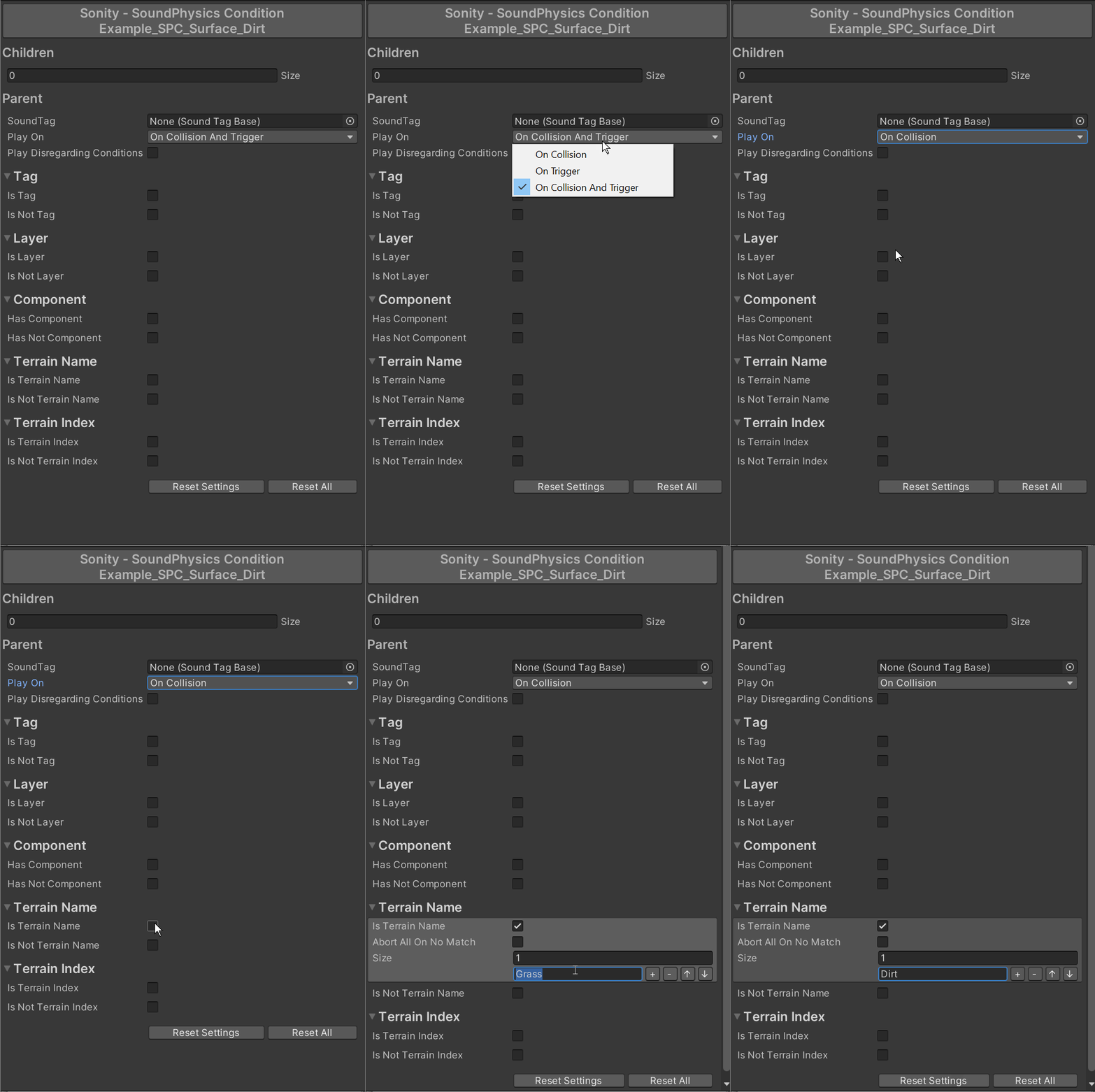
[SoundPhysicsCondition](#soundphysicscondition) objects are used in the ´component to decide if a physics interaction should play a [SoundEvent](/docs/soundevent.md) or not.\
They make it easy to manage a large amount of physics objects and linking conditions together with the child nesting feature.\
You can also use them for playing different sounds with a single [SoundEvent](/docs/soundevent.md) by using [SoundTags](/docs/soundtag.md).\
All [SoundPhysicsCondition](#soundphysicscondition) objects are multi-object editable.
**Notes**\
At the top of the [SoundPhysicsCondition](#soundphysicscondition) there is a text field which you can fill with notes.
**Children**\
You can nest [SoundPhysicsConditions](#soundphysicscondition) so you don't have to update all your [SoundPhysics](/docs/soundphysics.md) components when adding a new [SoundPhysicsCondition](#soundphysicscondition).\
The children of the parent [SoundPhysicsCondition](#soundphysicscondition) are evaluated after the parent.
**Parent**\
The parent [SoundPhysicsCondition](#soundphysicscondition) is evaluated before the children.
**SoundTag**\
By utilizing the [SoundTags](/docs/soundtag.md) you can play different sounds with a single [SoundEvent](/docs/soundevent.md) (see the example physics assets on how you can set that up).\
If no [SoundTag](/docs/soundtag.md) is assigned it won't affect the output [SoundTag](/docs/soundtag.md), so if a child has an assigned [SoundTag](/docs/soundtag.md) and the parent doesn't, the child one will be used.\
They are useful to split into different child [SoundPhysicsConditions](#soundphysicscondition) with different [SoundTags](/docs/soundtag.md).
**Play On**\
Selects if it should be played when a OnCollision and/or OnTrigger event occurs.\
OnTrigger is when you have a collider which is set to “Is Trigger”.
**Play Disregarding Conditions**\
If enabled the [SoundPhysicsCondition](#soundphysicscondition) will play regardless of its own conditions.\
Useful to combine with child [SoundPhysicsConditions](#soundphysicscondition) with different [SoundTags](/docs/soundtag.md).
**Abort All On No Match**\
If enabled and the assigned condition is not matched it will abort playing and disregard all other conditions.\
If not enabled and the assigned condition is not matched another condition which is met can play the sound.
**Abort All On Match**\
If enabled and the assigned condition is matched it will abort playing and disregard all other conditions.\
If not enabled and the assigned condition is matched another condition which is met can play the sound.
### **Tag**
Checks if the Tag of the colliding GameObject matches any of the specified Tags.
### **Layer**
Checks if the Layer of the colliding GameObject matches any of the specified Layers.
### **Terrain Name**
Checks if the name of the most dominant Terrain Layer of the colliding Terrain contains any of the specified strings (it is not case sensitive).\
E.g. you have multiple Terrain Layers with different grass textures, if the names of the Terrain Layers contain the string it will play the sound.\
Terrain conditions are only evaluated if the colliding object has a Terrain component.\
The center point of the [SoundPhysics](/docs/soundphysics.md) object is used to calculate the dominant Terrain Layer because it is more stable than the contacts.
### **Terrain Index**
Checks if the index of the most dominant Terrain Layer of the colliding Terrain is any of the specified indexes.\
Terrain conditions are only evaluated if the colliding object has a Terrain component.\
The center point of the [SoundPhysics](/docs/soundphysics.md) object is used to calculate the dominant Terrain Layer because it is more stable than the contacts.
### **Component**
Checks if the Components of the colliding GameObject match any of the specified Components.\
The names are case sensitive.
### Sonity GUID
Sonity uses cached GUIDs for object comparison.\
This solves problems where object equality isn't always the same when using e.g. addressables.\
The Sonity AssetPostprocessor automatically saves the GUIDs for objects.\
If you have any missing GUIDs (when upgrading) you can run:\
"Tools/Sonity 🔊/Tools/Reserialize - All Sonity Assets".\
Sonity GUID by [Tobias Johansson](https://www.knackelibang.com/)