Steam Audio Integration
How to enable and use the Steam Audio integration in Sonity
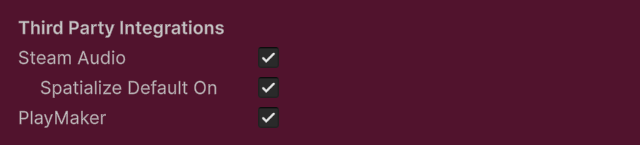
The Steam Audio Sonity integration can be enabled in the SoundManager Settings. You also need to install the Steam Audio Unity asset package. And add the Script Define Symbol "SONITY_ENABLE_INTEGRATION_STEAM_AUDIO". The free trial version of Sonity doesn’t support this feature because it uses Scripting Define Symbols. It is tested and working on Steam Audio version 4.6.1.
Steam Audio adds features like:
Occlusion of sound sources.
Reflections and related environmental audio effects.
Propagation of sound along multiple paths.
When using Steam Audio in combination with Voice Preload you should enable Async Startup because Steam Audio isn't ready on Awake(). Also note that Steam Audio at the moment is not available for all platforms.
Getting Started
Go to the valve github https://github.com/ValveSoftware/steam-audio/releases
Download steamaudio_unity_X.X.X.zip and locate the file SteamAudio.unitypackage.
Drag and drop the Steam Audio unitypackage into Unity and import the contents.
Enable “Steam Audio” in the SoundManager Settings.
Add the Script Define Symbol "SONITY_ENABLE_INTEGRATION_STEAM_AUDIO" by pressing the “Add Scripting Define Symbol” button.
You may need to restart the Unity project.
This adds the SoundContainer Settings - Steam Audio tab where you can select how the sound will be played in Steam Audio.
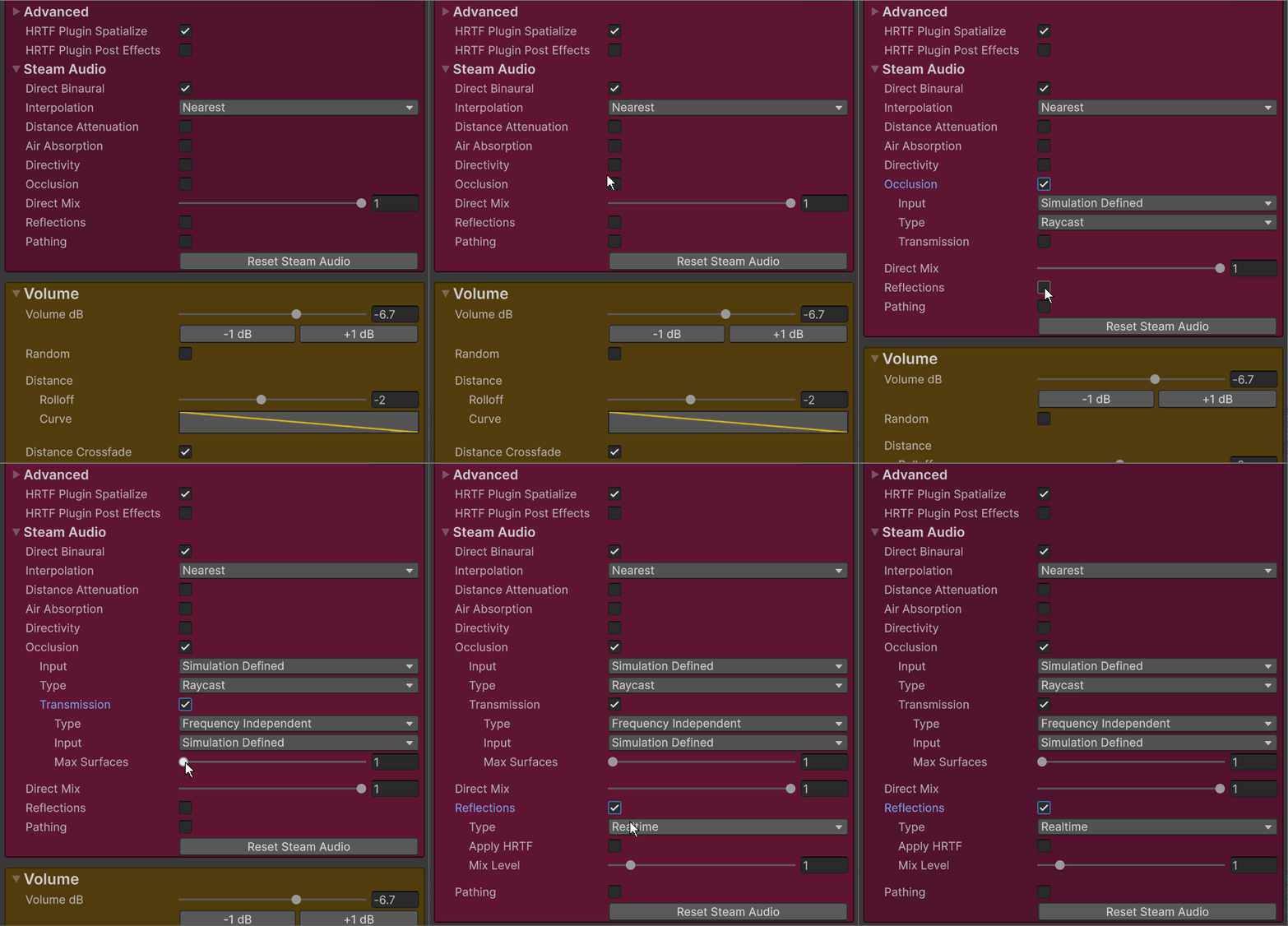
SoundContainer - HRTF Plugin Spatialize Spatialize makes the sound be affected by Steam Audio with effects like occlusion, reflections and more. Disable Spatialize for 2D sounds like music etc.
Audio Spatializer
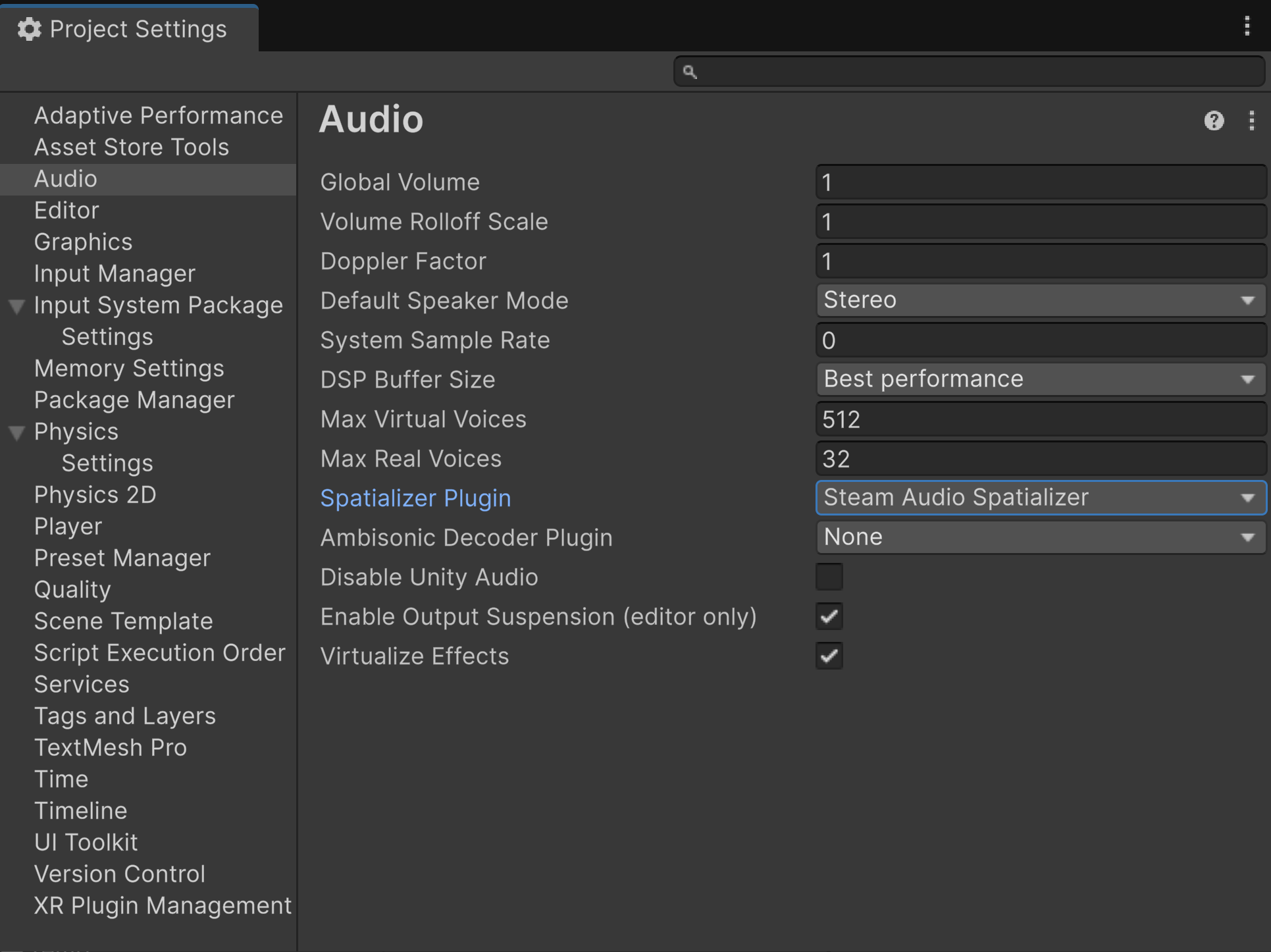
You can also change the Spatializer to Steam Audio Spatializer in the project settings. Project Settings > Audio > Spatializer Plugin This changes the spatialization for all the sounds in the project. You also need to enable HRTF Plugin Spatialize in the SoundContainer Settings.
SteamAudioSettings
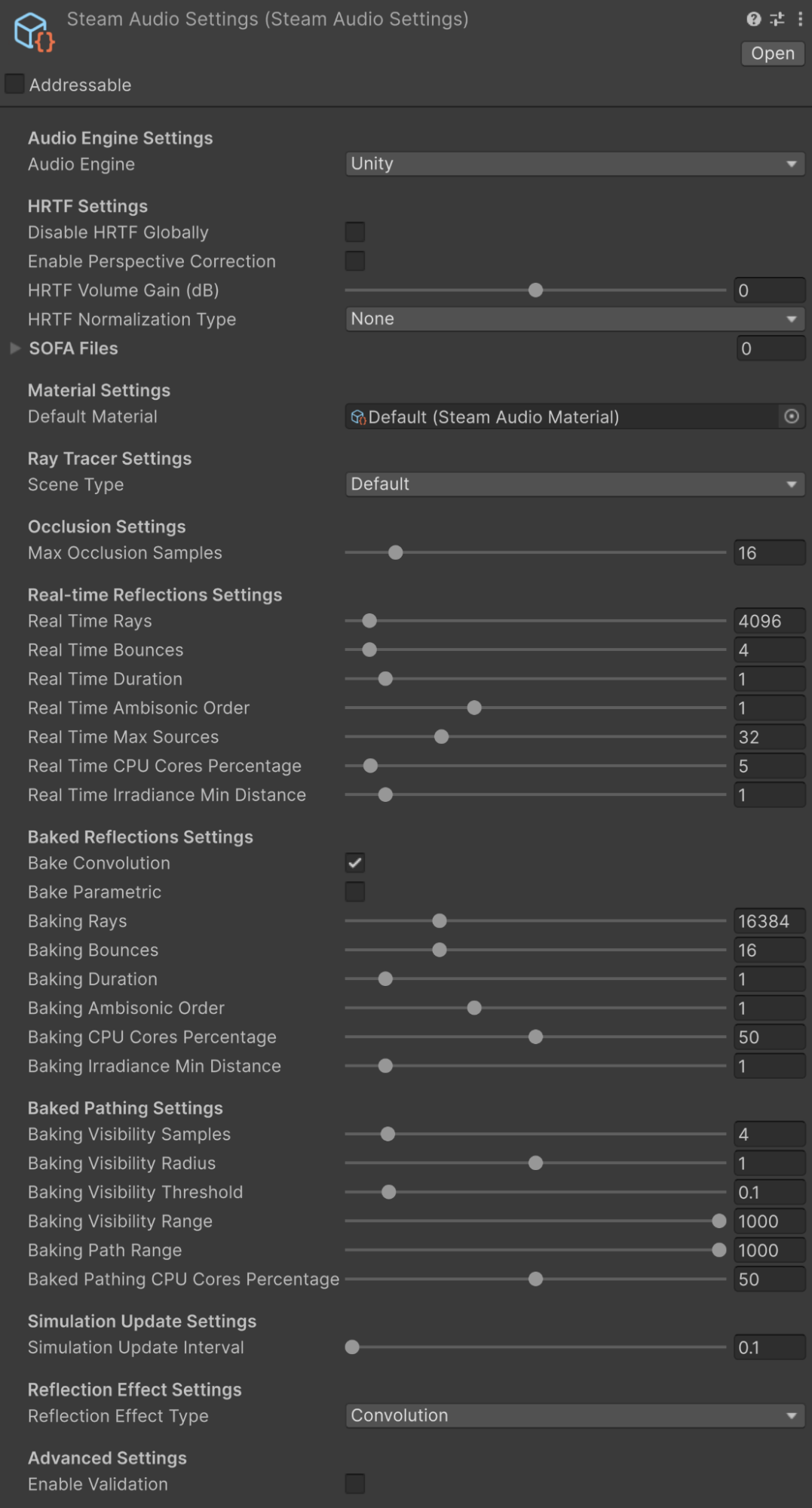
You can also change settings for Steam Audio in the SteamAudioSettings.asset. Which is automatically created and located at Plugins\SteamAudio\Resources.
Steam Audio Official Valve documentation links:
Steam Audio - Basics
Steam Audio - Features
Last updated