PlayMaker Integration
How to enable and use the PlayMaker integration in Sonity
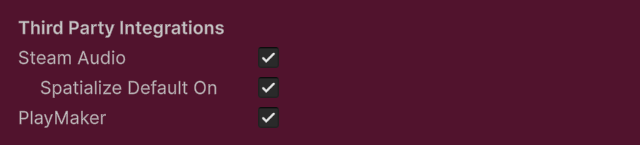
The PlayMaker Sonity integration can be enabled in the SoundManager Settings. You also need to install the PlayMaker Unity asset package. And add the Script Define Symbol "SONITY_ENABLE_INTEGRATION_PLAYMAKER". The free trial version of Sonity doesn’t support this feature because it uses Scripting Define Symbols. It is tested and working on PlayMaker version 1.9.8. PlayMaker adds easy access to visual scripting.
Example usage:

Below is a list of all available PlayMaker actions for Sonity's third party integration. Most of this information is also available as tooltips by hovering the Action inside Unity.
Sonity Play
Sonity Play Sound
Play the SoundEvent at the position of this GameObject
Sonity Play Sound At Transform
Plays the SoundEvent at the position of input Vector3
Sonity Play Sound At Vector3
Plays the SoundEvent at the position of the owner Transform
SoundEvent
The SoundEvent to play
Vector3
The Vector3 position to play from.
Transform
The Game Object Transform to play the SoundEvent from.
Use Parameters
Enables the use of SoundParameters. For example SoundParameterVolumeDecibel is used to modify how the SoundEvent is played
Sonity Play Sound
Play the SoundEvent at the position of this GameObject
Sonity Play Sound At Transform
Plays the SoundEvent at the position of input Vector3
Sonity Play Sound At Vector3
Plays the SoundEvent at the position of the owner Transform
SoundEvent
The SoundEvent to play
Vector3
The Vector3 position to play from.
Transform
The Game Object Transform to play the SoundEvent from.
Use Parameters
Enables the use of SoundParameters. For example SoundParameterVolumeDecibel is used to modify how the SoundEvent is played
Sonity Stop
Sonity Stop Sound
Play the SoundEvent at the position of this GameObject
Sonity Stop At Position
Stop the SoundEvent playing at the GameObject Transform.
Sonity Stop All At Owner
Stop all SoundEvents playing on this GameObject.
Sonity Stop Everywhere
Stop all instances of the SoundEvent.
Sonity Stop Everything
Stop the SoundEvent with fadeout. Disabling this stops the sound immediately.
SoundEvent
The SoundEvent to stop.
AllowFadeout
Stop the SoundEvent with fadeout. Disabling this stops the sound immediately.
TargetGameObject
The GameObject Transform on which to stop the SoundEvent.
Sonity Pause and Unpause
Pause
Pauses a SoundEvent playing on a GameObject.
Pause All At Owner
Pauses all SoundEvents playing on a GameObject.
Pause Everything
Pauses all SoundEvents currently playing.
Pause Everywhere
Pause all instances of the chosen SoundEvent.
Unpause
Unpauses a SoundEvent playing on a GameObject.
Unpause All At Owner
Unpauses all SoundEvents playing on a GameObject.
Unpause Everything
Unpauses all SoundEvents currently playing.
Unpause Everywhere
Unpauses all instances of the chosen SoundEvent.
SoundEvent
The SoundEvent to pause/unpause.
TargetGameObject
The GameObject Transform on which to pause/unpause the SoundEvent.
ForcePause
Pauses SoundEvent even if it is set to "Ignore Local Pause".
ForceUnpause
Unpauses SoundEvent even if it is set to "Ignore Local Pause".
Sonity SoundParameters
SoundParameters add an extra layer of control that allows for greater modification of SoundEvents (e.g. volume, distortion, pitch etc). They can be added when first playing a SoundEvent and set to update either once when playback starts or to continuously listen for updates.
Read more about SoundParamters.
Enabling SoundParameters
By default, SoundParameters are not enabled on a SoundEvent. Enabling Use Parameters in a Play Action will reveal options to add SoundParameters to that event. Once enabled, there are several ways of configuring the parameters of a SoundEvent.
❕ Note: You can only use one instance of the same type of each parameter, eg: adding 2 SoundParameterVolume will only use the last one.

💡 TIP - Updating Parameter Values Continuously To create a SoundEvent action with an updatable parameter, set UpdateMode to Continuous and store the ParameterValue in an FSM Variable. When you want to update the value just change the FSM Variables and it will automatically update the SoundEvent.
Use Parameters
Enable to show SoundParameter options.
Number of Parameters
How many SoundParameters are active on this SoundEvent. Max amount is 8.
Show parameters
Fold-out menu to show or hide SoundParameters in the GUI.
Parameter type
Select which SoundParameter to apply to the SoundEvent.
Update mode
Determines if the SoundEvent will take the parameter into consideration only Once at start or if it will be updated Continuously.
Type [Read only]
What type of value (float, bool, int) the SoundParameter takes. The type cannot be set, only read.
Parameter value
Value of the SoundParameter when playing the SoundEvent. Can be a value or an FsmVariable.
Sonity SoundEvent Info
Get SoundEvent State
Returns the current SoundEventState of the SoundEvent.
Get Last Played Clip Length
Returns the current time (in range 0 to 1) of the AudioClip in the last played AudioSource.
Get Last Played Clip Time Seconds
Returns the current time (in seconds) of the AudioClip in the last played AudioSource. Returns 0 if the SoundEvent is not playing or null, and if the Transform is null.
Get Last Played Clip Time Ratio
Returns the progress of playback (in range 0 to 1) of the AudioClip in the last played AudioSource. Returns 0 if the SoundEvent is not playing or null, and if the Transform is null.
Get Time Played
Returns the time (in seconds) since the SoundEvent was played. Time is calculated using the time scale selected in the SoundManager. Returns 0 if the SoundEvent is not playing or null, and if the Transform is null.
Get Contains Loop
Returns true if any SoundContainers in the SoundEvent are set to loop.
Get Max Length
Returns the max length (in seconds) of the SoundEvent (calculated from the longest AudioClip). The result is automatically scaled by the pitch of the sound.
SoundEvent
The SoundEvent to pause.
Target GameObject
The GameObjectTransform on which to stop the SoundEvent.
Pitch Speed
Returned value is adjusted by the SoundEvent pitch value.
Store State In
FsmVariable to store the returned value in.
Sonity UI
UI SoundEvent Events do not need a GameObject reference.
💡 TIP - UI Play & Music Play There are many different actions for starting playback of a SoundEvent. The standard way is using the Play action which allows for positional audio inside Unity. For sounds that do not need to be positioned, such as UI, there are the UIPlay methods. For music you can use MusicPlay. Any action that has “UI” or “Music” included in its name will only work on SoundEvents played by the matching action. For example, using the MusicGetSoundEventState Action on a SoundEvent that was started using the normal action Play will not work.
UI Play
UI Play
The SoundEvent to play without needing to input an owner GameObject.
SoundEvent
The SoundEvent to play.
SoundTag
The SoundTag which will determine the Local SoundTag of the SoundEvent.
Use Parameters
The GameObject Transform to play the SoundEvent from.
UI Stop
UI Stop
Stop UI SoundEvent.
UI Stop All
Stop all playing UI SoundEvents.
SoundEvent
The SoundEvent to stop.
Allow Fadeout
Stop the SoundEvent with fadeout. Disabling this stops the sound immediately.
UI Pause and Unpause
UI Pause
Pause the UI SoundEvent.
UI Pause All
Pause all playing UI SoundEvent.
UI Unpause
Unpause the UI SoundEvent.
UI Unpause All
Unpause all playing UI SoundEvent.
SoundEvent
The UI SoundEvent to pause.
Force Pause
Pauses the SoundEvent even if it is set to "Ignore Local Pause".
Force Unpause
Unpauses the SoundEvent even if it is set to "Ignore Local Pause".
UI Get Info
UI Get Sound Event State
Returns the current SoundEventState of the UI SoundEvent.
UI Get Last Played Clip Length
Returns length of the last played AudioClip as float seconds. Returns 0 if the SoundEvent is not playing or null, and if the Transform is null.
UI Get Last Played Clip Time Seconds
Returns the current time (in range 0 to 1) of the AudioClip in the last played AudioSource. Returns 0 if the SoundEvent is not playing or null, and if the Transform is null.
UI Get Last Played Clip Time Ratio
Returns the current time (in seconds) of the AudioClip in the last played AudioSource. Returns 0 if the SoundEvent is not playing or null, and if the Transform is null.
UI Get Time Played
Returns the time (in seconds) since the UI SoundEvent was played. Time is calculated using the time scale selected in the SoundManager. Returns 0 if the UI SoundEvent is not playing or null, and if the Transform is null.
UI Get Transform
Returns the owner Transform used when playing a UI SoundEvent.
Sound Event
The SoundEvent to get information from.
Store State In
Fsm Variable to store the returned value in.
Pitch Speed
Returned value is adjusted by the SoundEvents pitch value. Eg. -12 semitones will be twice as long.
Sonity Music
Music Event Actions are SoundEvents with specific logic related to making music playback easier. Eg: Music Play do not need a GameObject owner reference.
Music Play
Music Play
Play a SoundEvent. Currently playing music can optionally be set to stop when this event starts playing.
Sound Event
The SoundEvent to play.
Stop All Other Music
Stop all other music events playing when this SoundEvent starts playing.
Allow Fadeout
Enables or disables fadeout on stopped SoundEvents.
Music Stop
Music Stop
Stop a Music SoundEvent currently playing.
Music Stop All
Stop all Music SoundEvent currently playing.
Allow Fadeout
Enables or disables fadeout on stopped SoundEvent.
Music Pause and Unpause
Music Pause
Pause a Music SoundEvent currently playing.
Music Pause All
Pause all Music SoundEvents currently playing.
Music Unpause
Unpause a Music SoundEvent currently playing.
Music Unpause All
Unpause all Music SoundEvents currently playing.
Sound Event
The SoundEvent to pause.
Force Pause
Pauses the SoundEvent even if it is set to "Ignore Local Pause".
Force Unpause
Unpauses the SoundEvent even if it is set to "Ignore Local Pause".
Music Get Info
Music Get Sound Event State
Returns the current SoundEventState of the Music SoundEvent.
Music Get Last Played Clip Length
Returns length of the last played AudioClip as float seconds. Returns 0 if the SoundEvent is not playing or null, and if the Transform is null.
Music Get Last Played Clip Time Seconds
Returns the current time (in range 0 to 1) of the AudioClip in the last played AudioSource. Returns 0 if the SoundEvent is not playing or null, and if the Transform is null.
Music Get Last Played Clip Time Ratio
Returns the current time (in seconds) of the AudioClip in the last played AudioSource. Returns 0 if the SoundEvent is not playing or null, and if the Transform is null.
Music Get Time Played
Returns the time (in seconds) since the Music SoundEvent was played. Time is calculated using the time scale selected in the SoundManager. Returns 0 if the Music SoundEvent is not playing or null, and if the Transform is null.
Music Get Transform
Returns the owner Transform used when playing a Music SoundEvent .
Sound Event
The SoundEvent to get information from.
Store State In
Fsm Variable to store the returned value in.
Pitch Speed
Returned value is adjusted by the SoundEvents pitch value. Eg. -12 semitones will be twice as long.
Sonity Audio Data Load Unload
The Load and Unload Actions lets the user manually load or unload the audio data of a SoundEvent. By default audio data is loaded when the SoundEvent first plays, unless you have enabled Preload Audio Data in the AudioClip. Manually loading or unloading can be used if you need to optimize the RAM usage of the audio assets.
Load Audio Data
Loads the audio data of any AudioClips assigned to the SoundContainers of the SoundEvent.
Unload Audio Data
Unloads the audio data of any AudioClips assigned to the SoundContainers of the SoundEvent.
Sound Event
The SoundEvent which to load or unload audio data from.
Last updated