> For the complete documentation index, see [llms.txt](https://sonity.gitbook.io/docs/llms.txt). Markdown versions of documentation pages are available by appending `.md` to page URLs; this page is available as [Markdown](https://sonity.gitbook.io/docs/sonity/create-assets-from-selection.md).
# Create Assets From Selection
Automatic asset creation to speed up your workflow

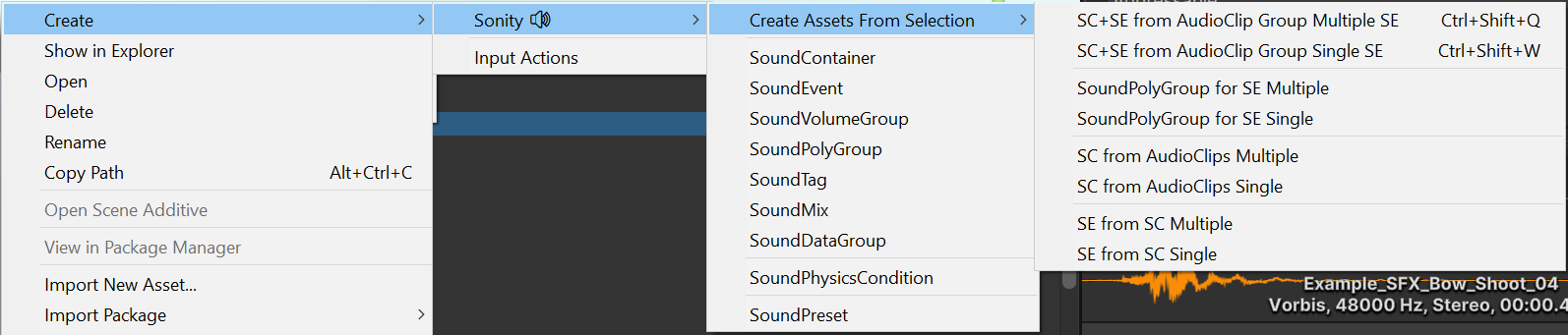
Right-click in the project menu to bring up the “Create Assets from Selection” menu.
With this you can easily create all your sound assets quickly if your AudioClips are named right.
* It works with folders as well as files.
* If a [SoundContainers](/docs/soundcontainer.md) name contains “loop” it will automatically enable “Loop”, “Follow Position”, “Stop if Transform is Null” and “Random Start Position”.
* It will automatically find out if you use space, hyphen “-” or underscore “\_” in your filenames and will style the file ending the same way (e.g. “\_SC”, “-SC” etc.)
**Shortcuts**\
SC+SE from AudioClip Group Multiple SE: Ctrl+Shift+Q\
SC+SE from AudioClip Group Single SE: Ctrl+Shift+W\
SoundPolyGroup for SE Multiple: Ctrl+Alt+Shift+Q\
SoundPolyGroup for SE Single: Ctrl+Alt+Shift+W\
They are rebindable in the Shortcuts window.
**AudioClip Group**\
AudioClip groups are sounds with the same name, but different numbers in the end e.g 01, 02, 03 etc.
**Create SoundContainers and multiple SoundEvents**\
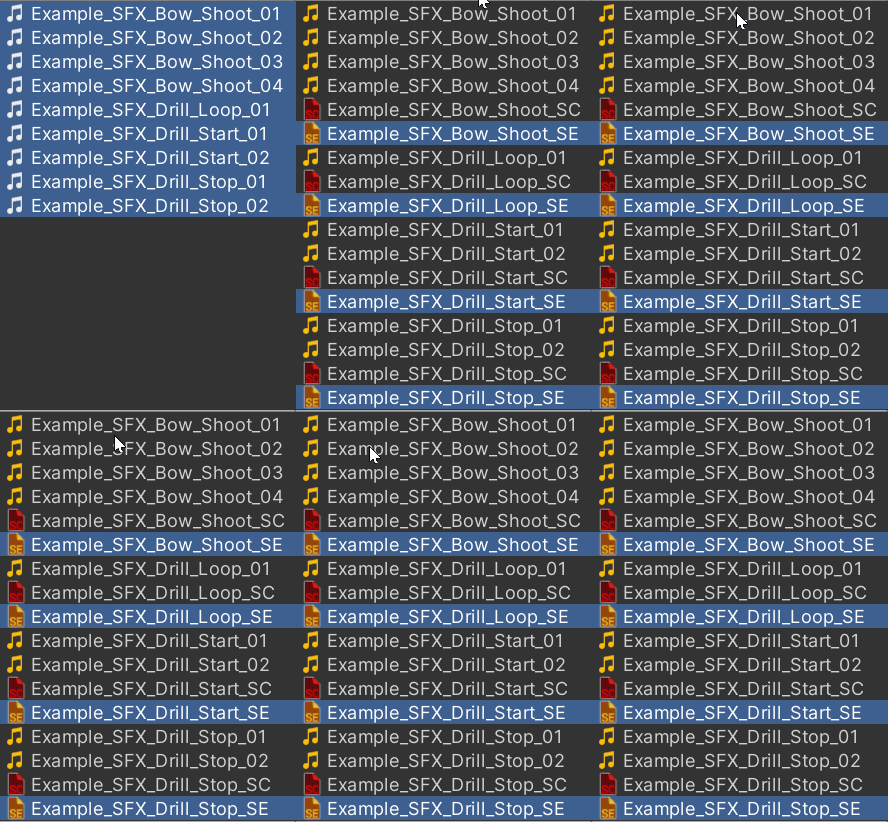
In this example we select the bow and drill sounds and run “SC+SE from AudioClip Group Multiple SE”:
This creates 4 SoundContainers and 4 [SoundEvents](/docs/soundevent.md), one per AudioClip group.
**Create SoundContainers and a single SoundEvent**\
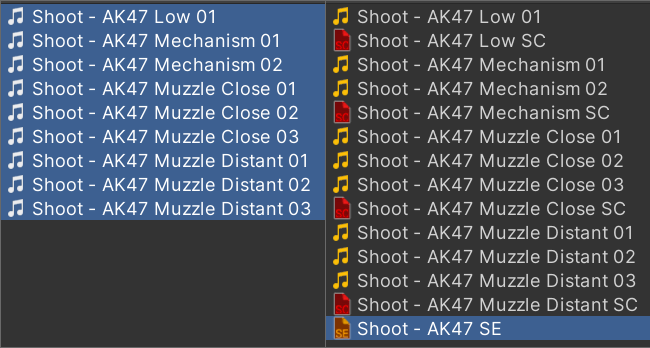
In this example we select the shoot sounds and run “SC+SE from AudioClip Group Single SE”:
They contain 4 different groups which will create 4 [SoundContainers](/docs/soundcontainer.md), one per group and a single [SoundEvent](/docs/soundevent.md).\
It will try to find a common denominator of the names of the [SoundContainers](/docs/soundcontainer.md) for naming the [SoundEvent](/docs/soundevent.md).