> For the complete documentation index, see [llms.txt](https://sonity.gitbook.io/docs/llms.txt). Markdown versions of documentation pages are available by appending `.md` to page URLs; this page is available as [Markdown](https://sonity.gitbook.io/docs/integrations/steam-audio-integration.md).

# Steam Audio Integration

How to enable and use the Steam Audio integration in Sonity

<div align="left"><img src="https://3478075546-files.gitbook.io/~/files/v0/b/gitbook-x-prod.appspot.com/o/spaces%2FECYQ2OSoWTLdq4EUgnCW%2Fuploads%2FtkThOM3REhOQVfkM80Wt%2FIntegrations.png?alt=media&amp;token=ec3811b6-16bf-41b8-9521-85dd40c57eb6" alt="" width="473"></div>

The Steam Audio Sonity integration can be enabled in the [SoundManager Settings](/docs/soundmanager.md#third-party-integrations).\
You also need to install the [Steam Audio Unity asset package](https://github.com/ValveSoftware/steam-audio/releases).\
And add the Script Define Symbol "SONITY\_ENABLE\_INTEGRATION\_STEAM\_AUDIO".\
The free trial version of Sonity doesn’t support this feature because it uses Scripting Define Symbols.\
It is tested and working on Steam Audio version 4.6.1.

Steam Audio adds features like:

* [Occlusion](https://valvesoftware.github.io/steam-audio/doc/unity/guide.html#model-occlusion-by-geometry) of sound sources.
* [Reflections](https://valvesoftware.github.io/steam-audio/doc/unity/guide.html#model-reflection-by-geometry) and related environmental audio effects.
* [Propagation](https://valvesoftware.github.io/steam-audio/doc/unity/guide.html#model-sound-paths-from-a-moving-source-to-a-moving-listener) of sound along multiple paths.

When using Steam Audio in combination with Voice Preload you should enable Async Startup because Steam Audio isn't ready on Awake().\
Also note that Steam Audio at the moment is not available for all platforms.

### Getting Started

1. Go to the valve github <https://github.com/ValveSoftware/steam-audio/releases>
2. Download steamaudio\_unity\_X.X.X.zip and locate the file SteamAudio.unitypackage.
3. Drag and drop the Steam Audio unitypackage into Unity and import the contents.
4. Enable “Steam Audio” in the [SoundManager Settings](/docs/soundmanager.md#third-party-integrations).
5. Add the Script Define Symbol "SONITY\_ENABLE\_INTEGRATION\_STEAM\_AUDIO" by pressing the “Add Scripting Define Symbol” button.
6. You may need to restart the Unity project.

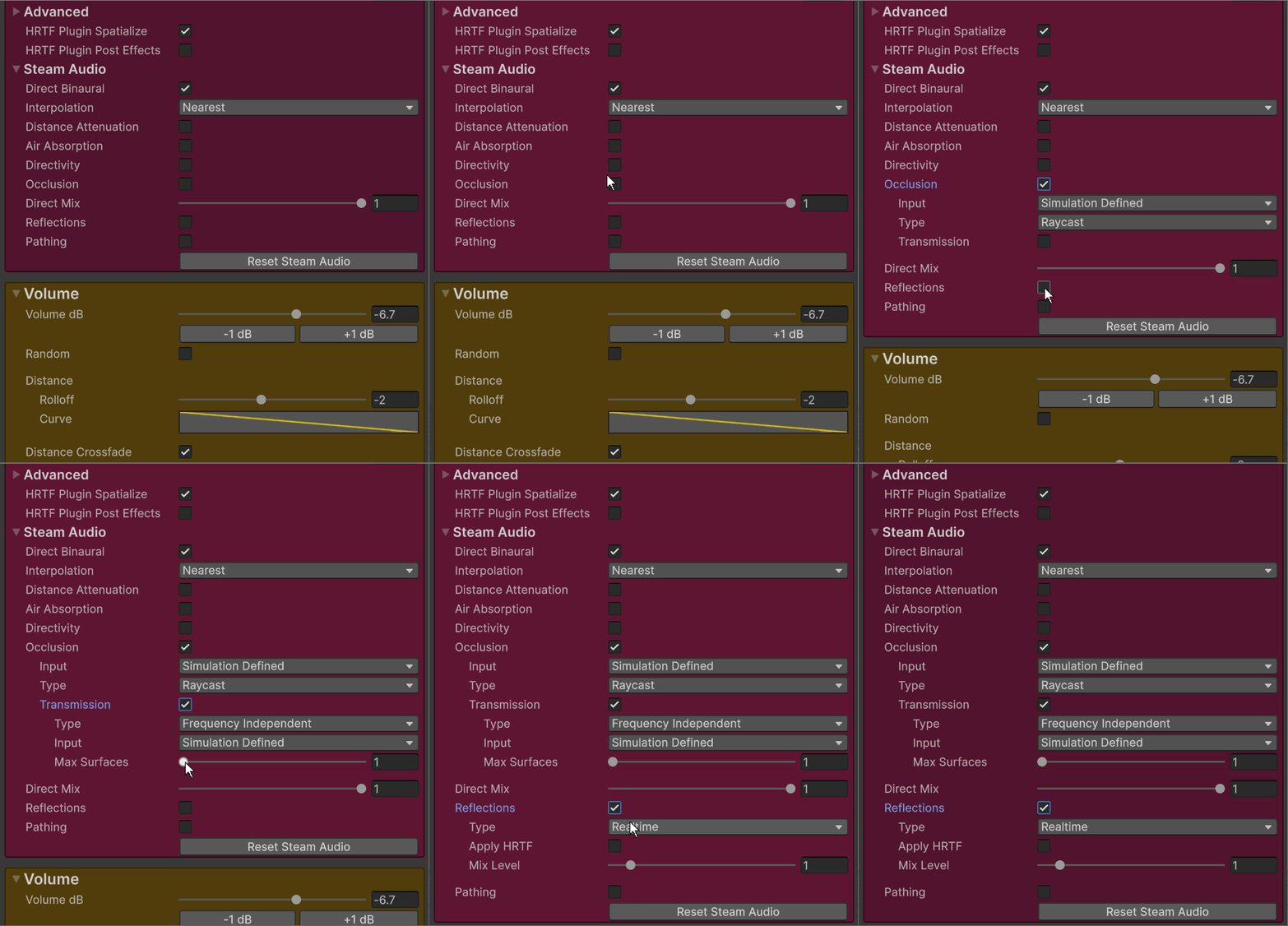
This adds the [SoundContainer Settings - Steam Audio](/docs/soundcontainer/steam-audio-settings.md) tab where you can select how the sound will be played in Steam Audio.

<div align="left"><img src="https://content.gitbook.com/content/ECYQ2OSoWTLdq4EUgnCW/blobs/9CtXuqqNVOCuFiUB4LLA/image11.gif" alt="" width="375"></div>

**SoundContainer - HRTF Plugin Spatialize**\
Spatialize makes the sound be affected by Steam Audio with effects like occlusion, reflections and more.\
Disable Spatialize for 2D sounds like music etc.

### **Audio Spatializer**

<div align="left"><img src="https://content.gitbook.com/content/ECYQ2OSoWTLdq4EUgnCW/blobs/QQct4k6gj1BnWp1pE3Mp/image14.png" alt="" width="563"></div>

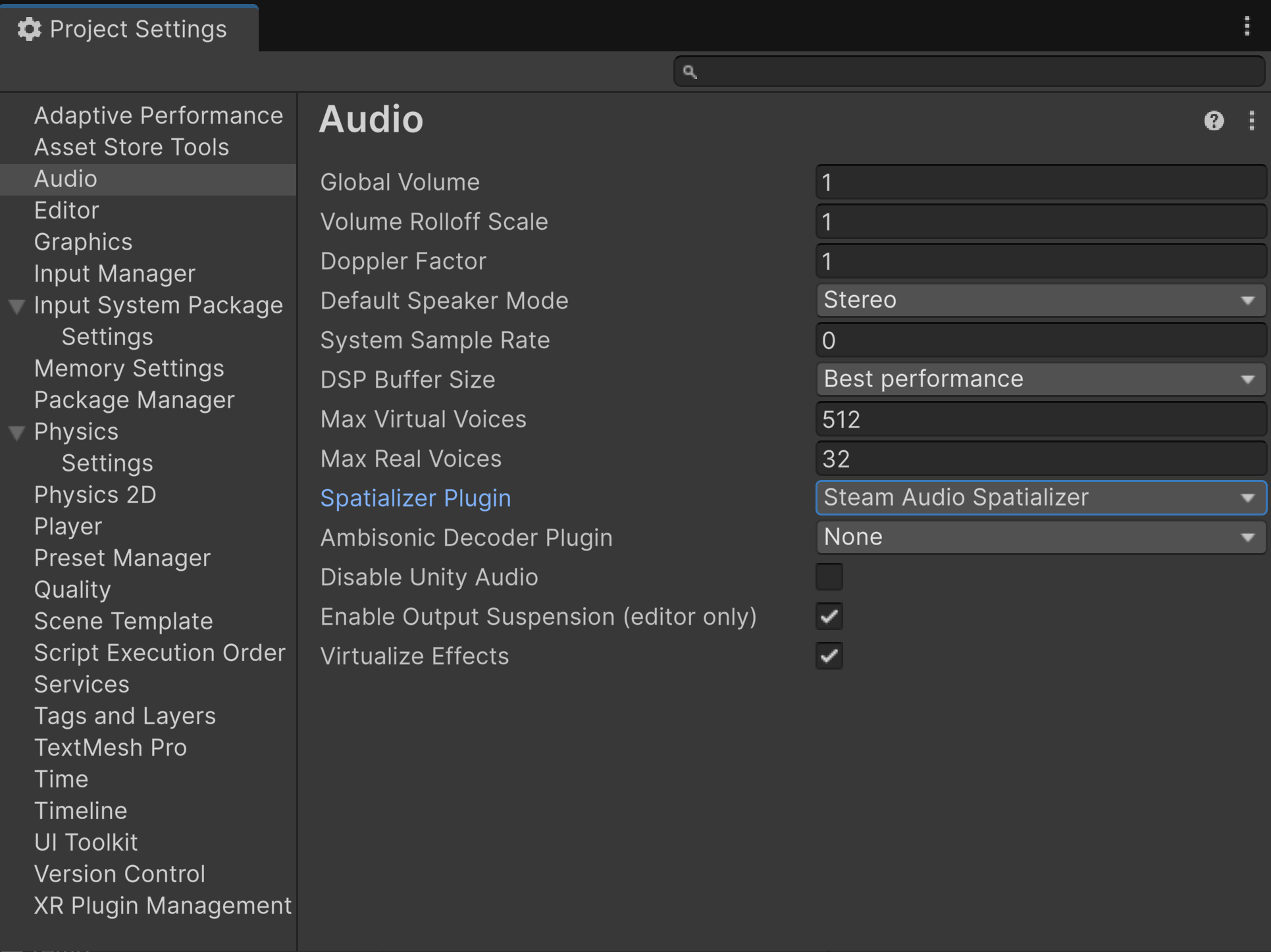
You can also change the Spatializer to Steam Audio Spatializer in the project settings.\
**Project Settings > Audio > Spatializer Plugin**\
This changes the spatialization for all the sounds in the project.\
You also need to enable **HRTF Plugin Spatialize** in the [SoundContainer Settings](/docs/soundcontainer.md#advanced-settings).

### **SteamAudioSettings**

<div align="left"><img src="https://content.gitbook.com/content/ECYQ2OSoWTLdq4EUgnCW/blobs/KOppcWfoWVtHw2ifE8BI/image31.png" alt="" width="375"></div>

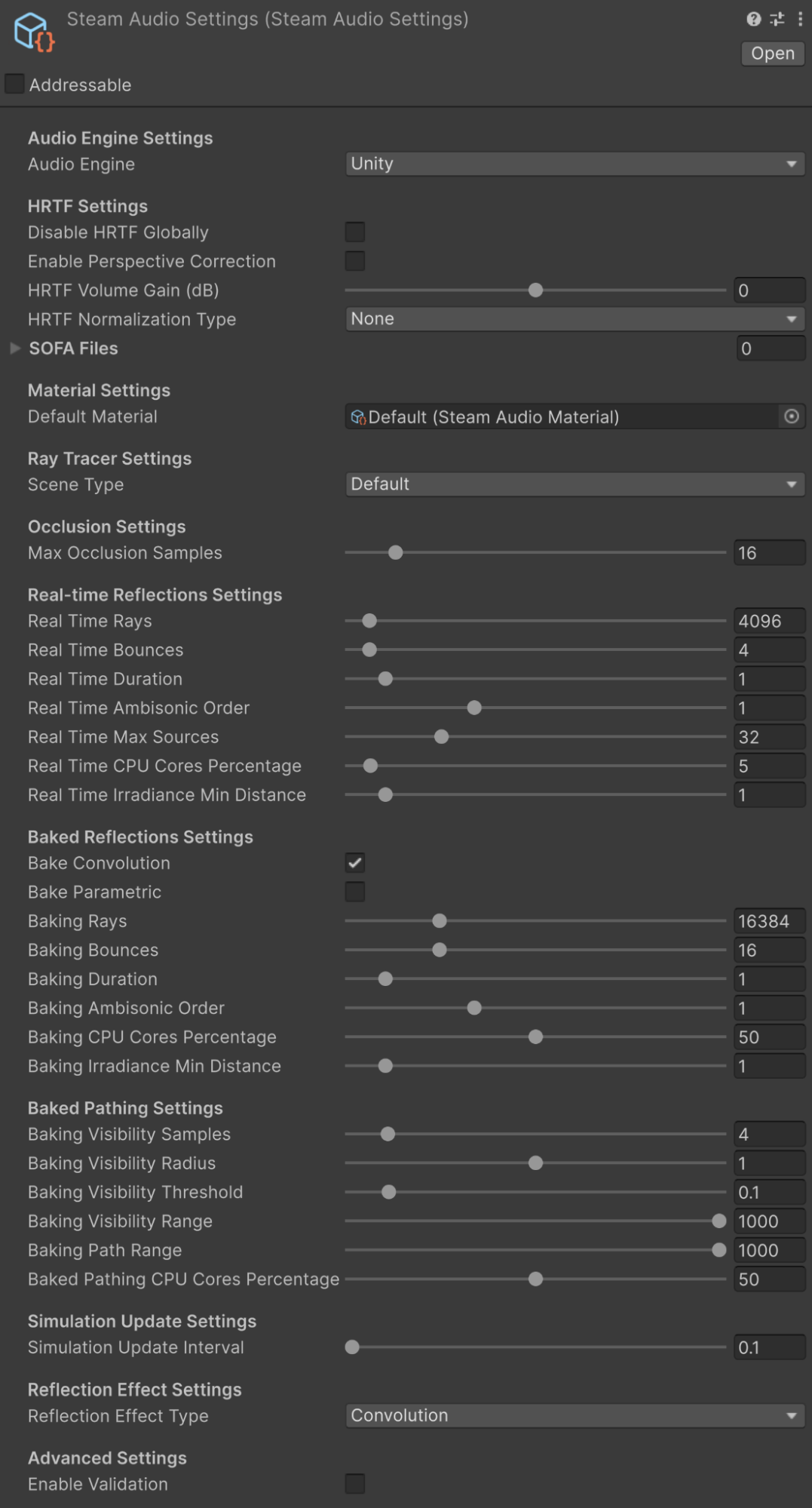
You can also change settings for Steam Audio in the SteamAudioSettings.asset.\
Which is automatically created and located at Plugins\SteamAudio\Resources.

### Steam Audio Official Valve documentation links:

**Steam Audio - Basics**

* [Getting Started](https://valvesoftware.github.io/steam-audio/doc/unity/getting-started.html)
* [Reference](https://valvesoftware.github.io/steam-audio/doc/unity/reference.html)

**Steam Audio - Features**

* [Tag Acoustic Geometry](https://valvesoftware.github.io/steam-audio/doc/unity/guide.html#tag-acoustic-geometry)
* [Set Up Dynamic Movable Geometry](https://valvesoftware.github.io/steam-audio/doc/unity/guide.html#set-up-dynamic-movable-geometry)
* [Model Occlusion by Geometry](https://valvesoftware.github.io/steam-audio/doc/unity/guide.html#model-occlusion-by-geometry)
* [Model Transmission Through Geometry](https://valvesoftware.github.io/steam-audio/doc/unity/guide.html#model-transmission-through-geometry)
* [Model Reflection by Geometry](https://valvesoftware.github.io/steam-audio/doc/unity/guide.html#model-reflection-by-geometry)
* [Simulate Physics Based Reverb at the Listener Position](https://valvesoftware.github.io/steam-audio/doc/unity/guide.html#simulate-physics-based-reverb-at-the-listener-position)
* [Create Sound Probes for Baked Sound Propagation](https://valvesoftware.github.io/steam-audio/doc/unity/guide.html#create-sound-probes-for-baked-sound-propagation)
* [Bake Physics Based Reverb](https://valvesoftware.github.io/steam-audio/doc/unity/guide.html#bake-physics-based-reverb)
* [Model Sound Paths From a Moving Source to a Moving Listener](https://valvesoftware.github.io/steam-audio/doc/unity/guide.html#model-sound-paths-from-a-moving-source-to-a-moving-listener)
* [Enable GPU Acceleration](https://valvesoftware.github.io/steam-audio/doc/unity/guide.html#enable-gpu-acceleration)